Specialist settings
Registration
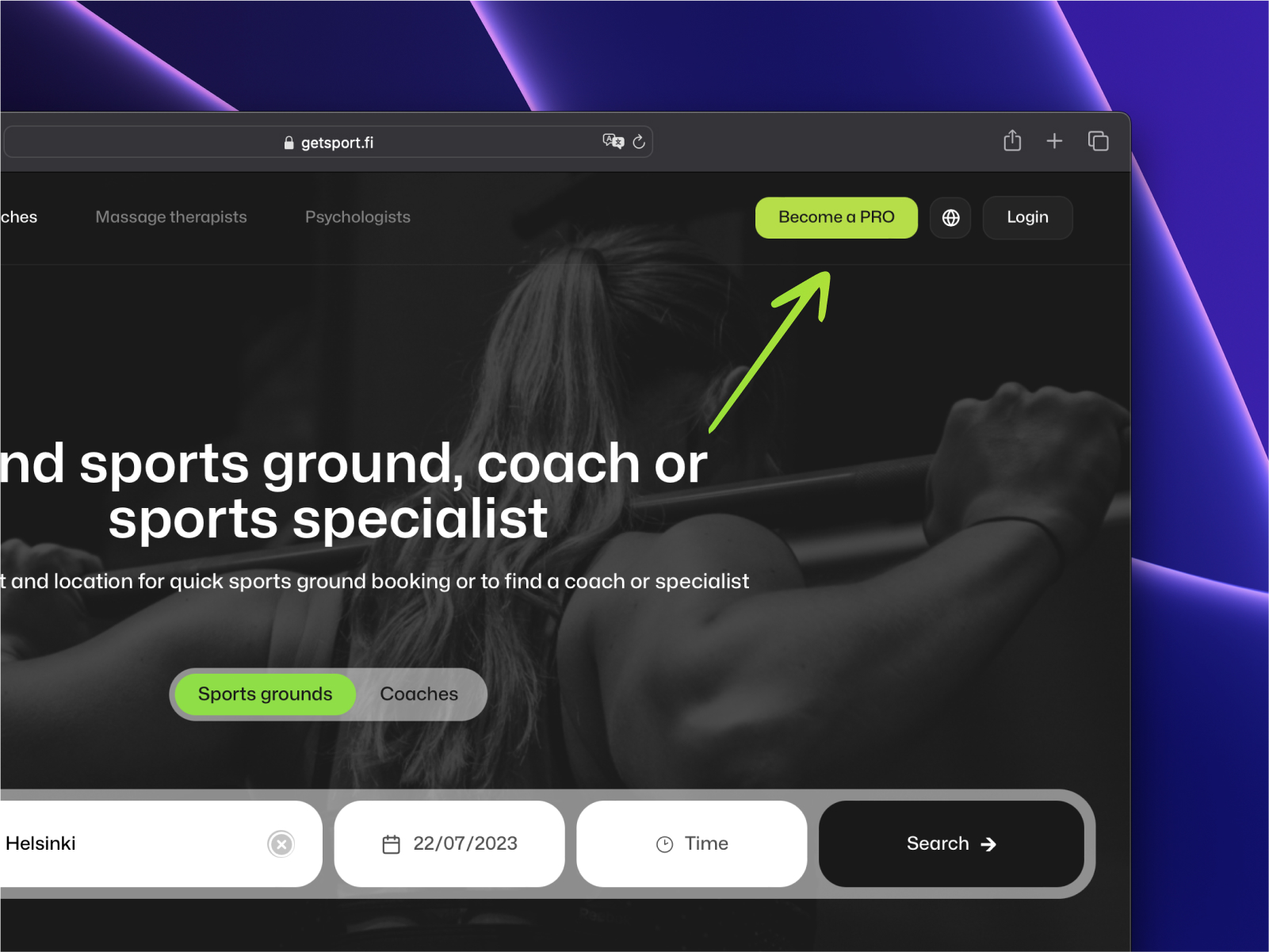
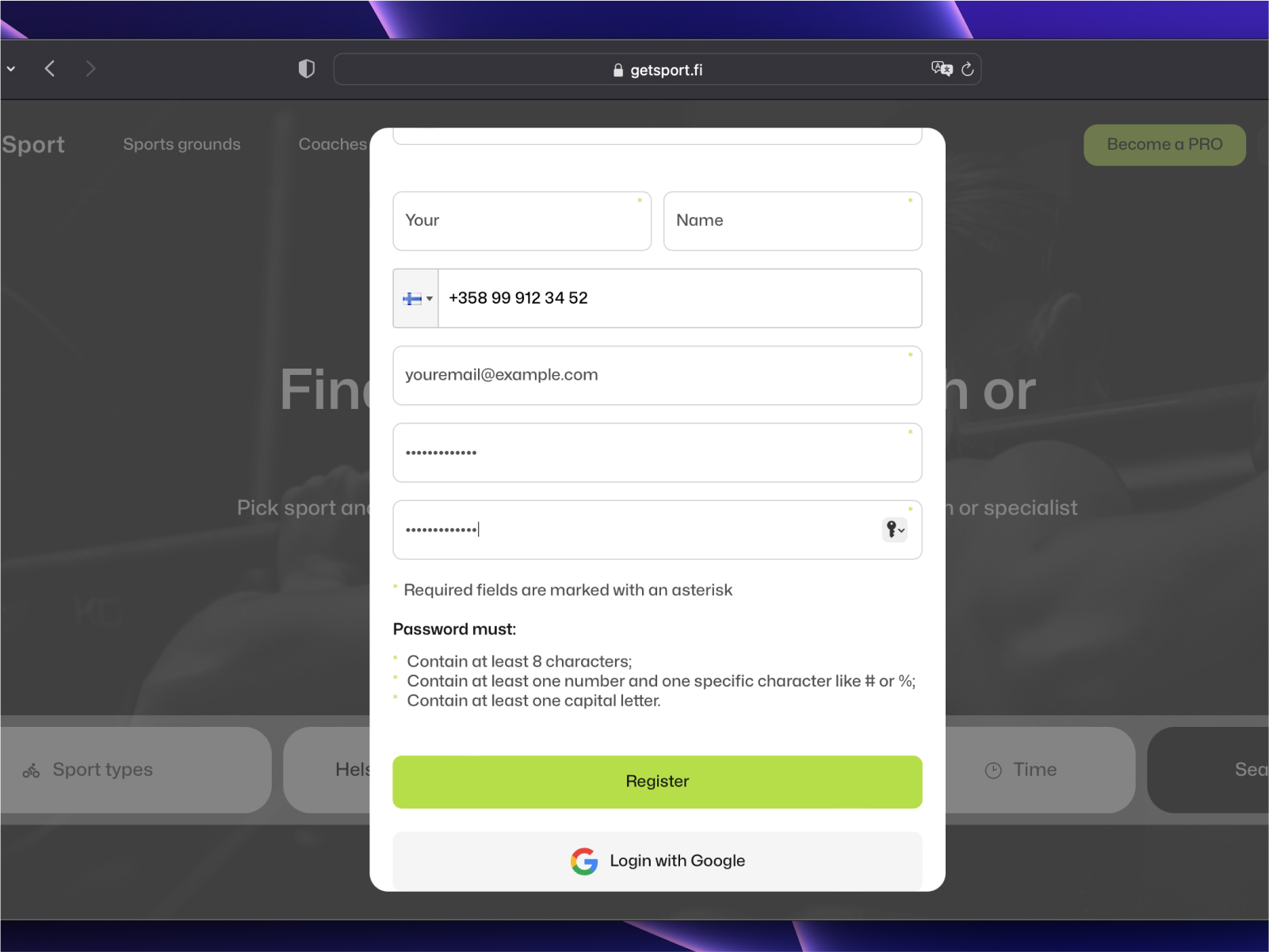
You can register on GetSport as a coach (trainer, or instructor), massage therapist, physiotherapist, or psychologist. To register for the service, click on the 'Become a Pro' button and fill out the registration form.
Roles (types of users)
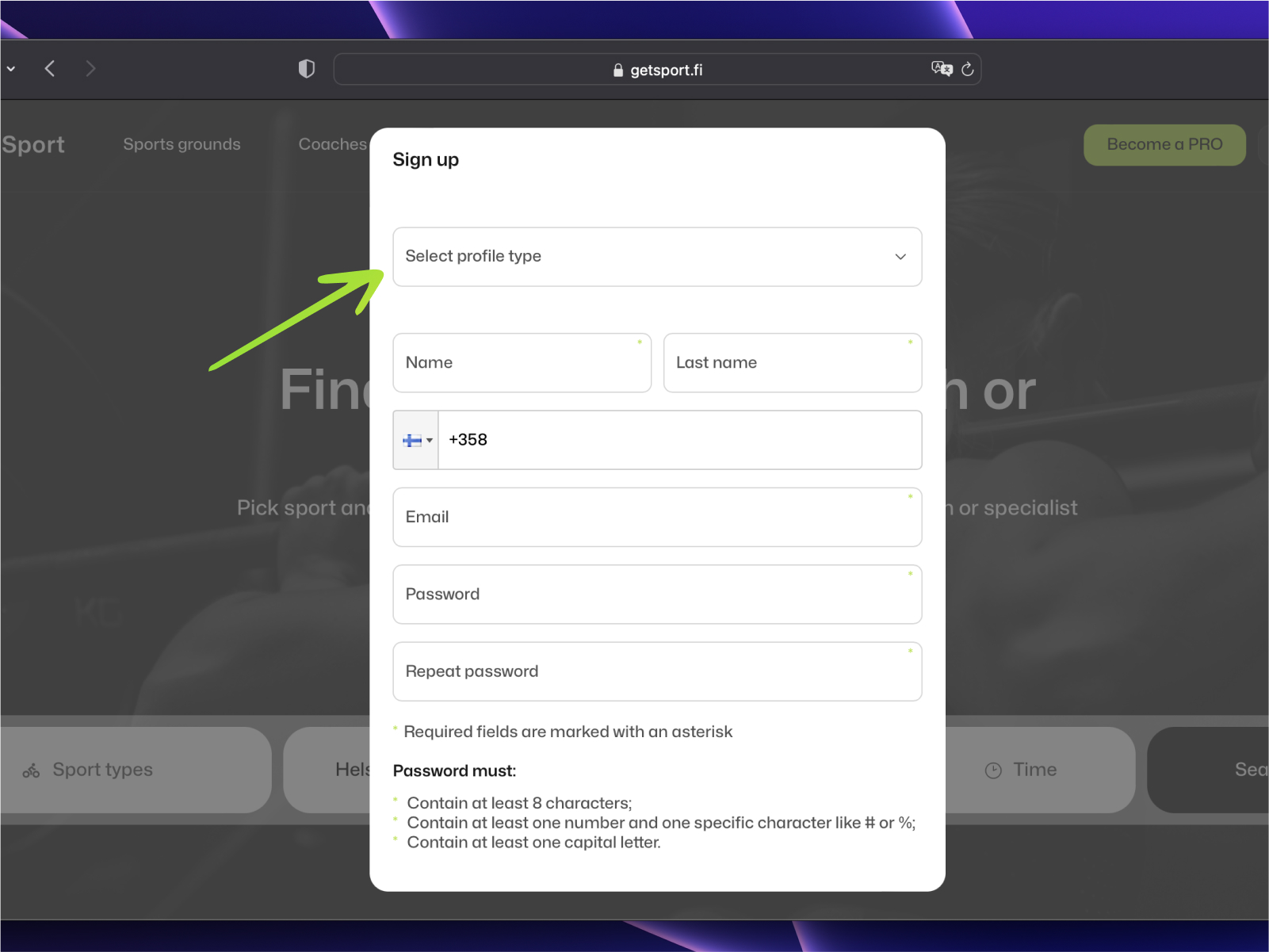
Please indicate your primary 'role' during registration. If you have multiple roles, such as a coach and a physiotherapist, you can specify additional roles later in your profile settings.
Phone number verification
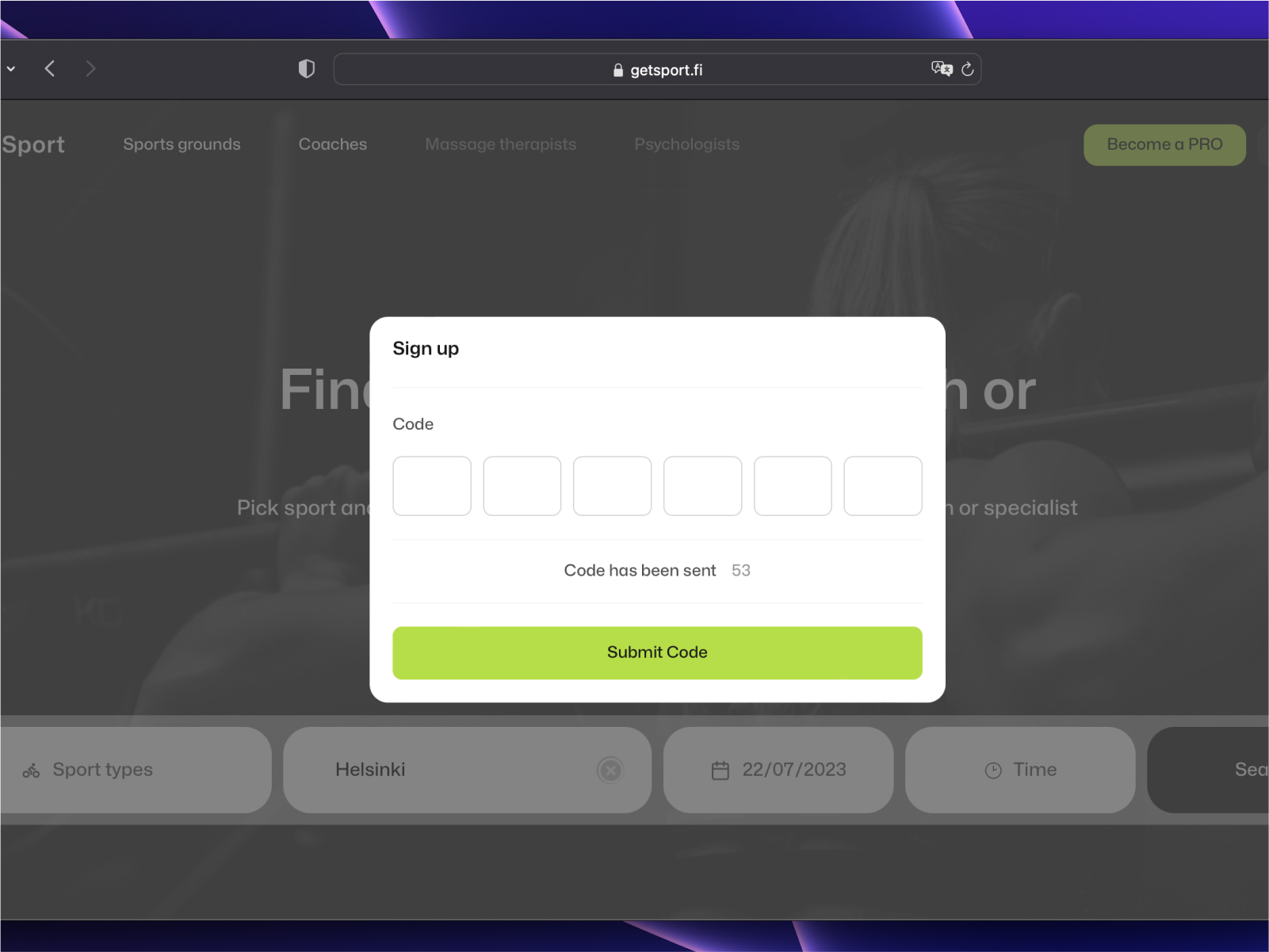
When registering, you will need to provide your phone number. We will send an SMS to this number with a code to confirm your account. Enter the received code from the SMS on the next step.
Account settings
Main photo & Pricing
After logging into the service, you will be taken to the general settings screen. Here, you can change the main photo of your profile (which is displayed in listings and other parts of the website), as well as your account password, email address and phone number.
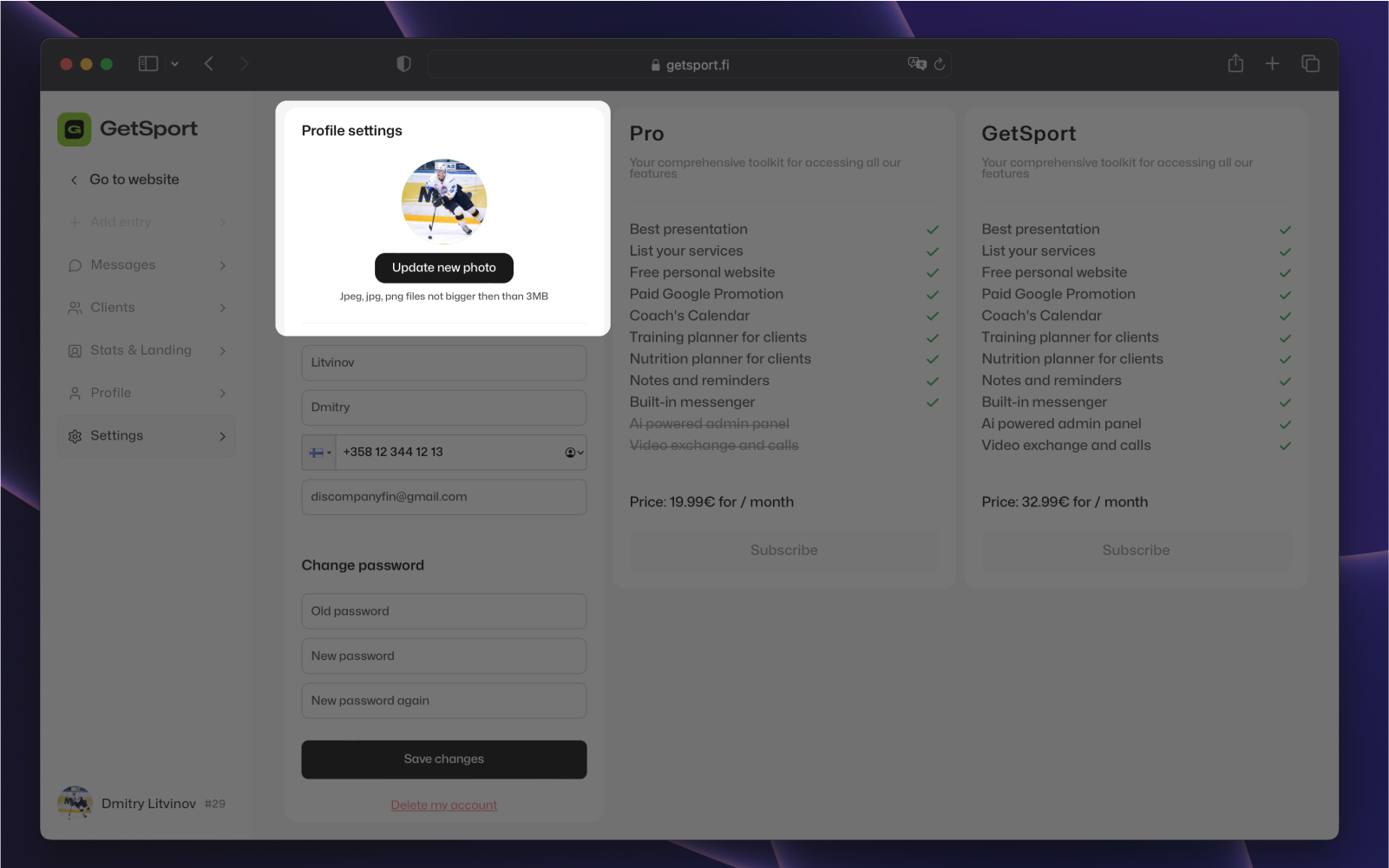
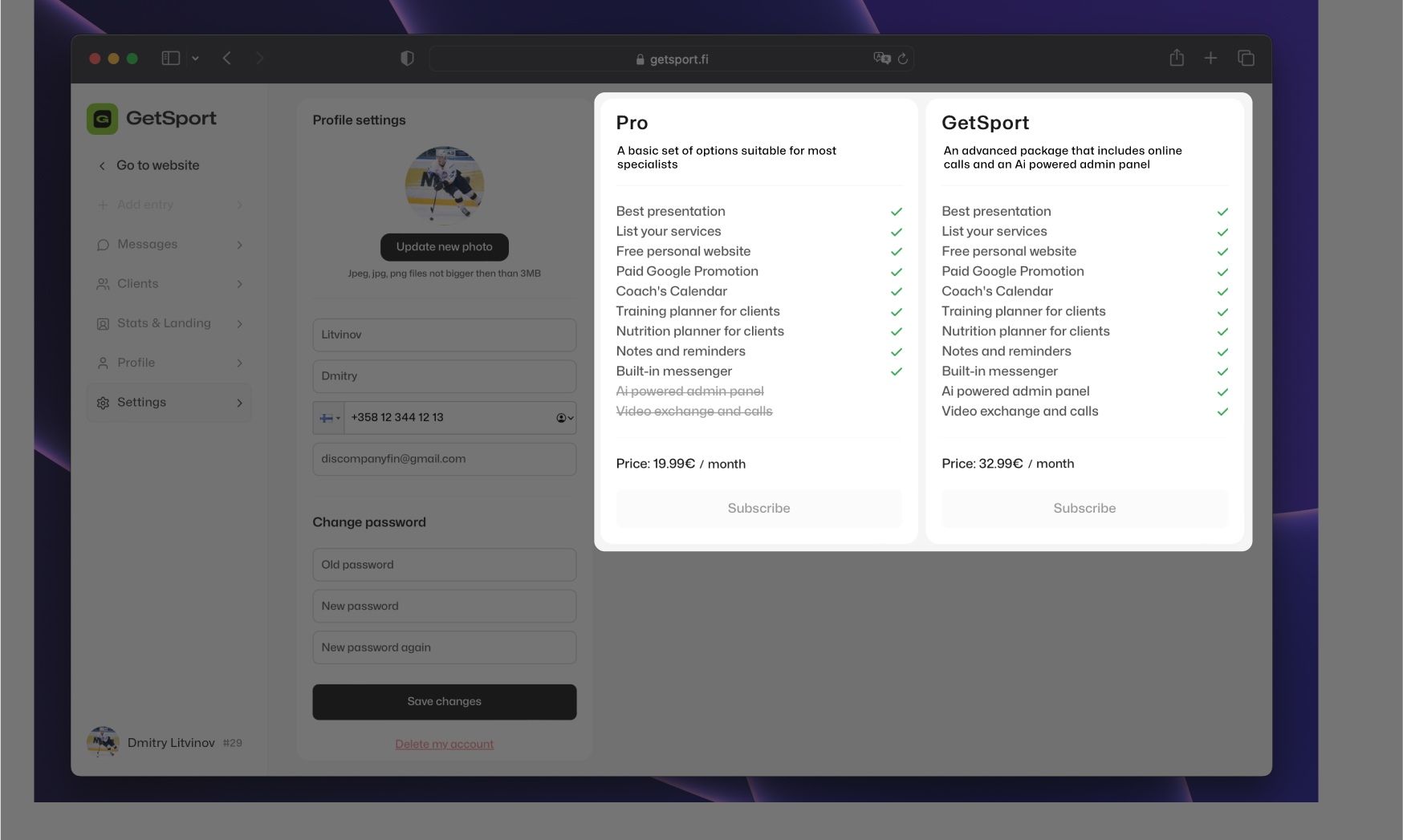
In the same tab, you can also choose one of the subscription packages. The packages differ in the set of options and limits for certain actions. The number of clients for whom you can provide meal plans and workouts is unlimited in any of the packages.
Service packages
We currently offer two service packages: Pro for 19.99 euros per month and GetSport for 32.99 euros per month. With the GetSport package, you will gain access to video calls, utilize AI for generating nutrition and workout programs, and enjoy early access to new features, along with increased limits for certain services.
Get Published
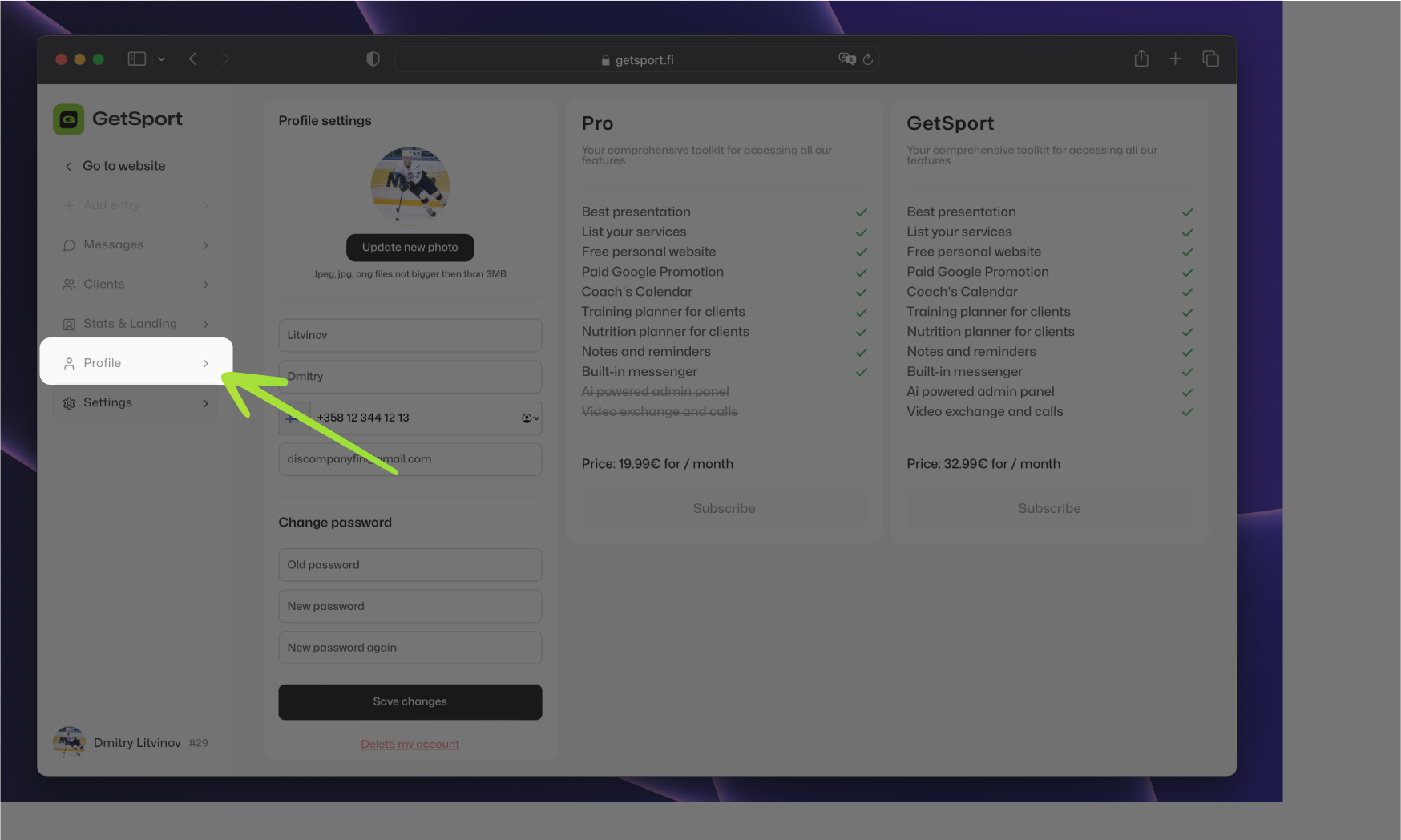
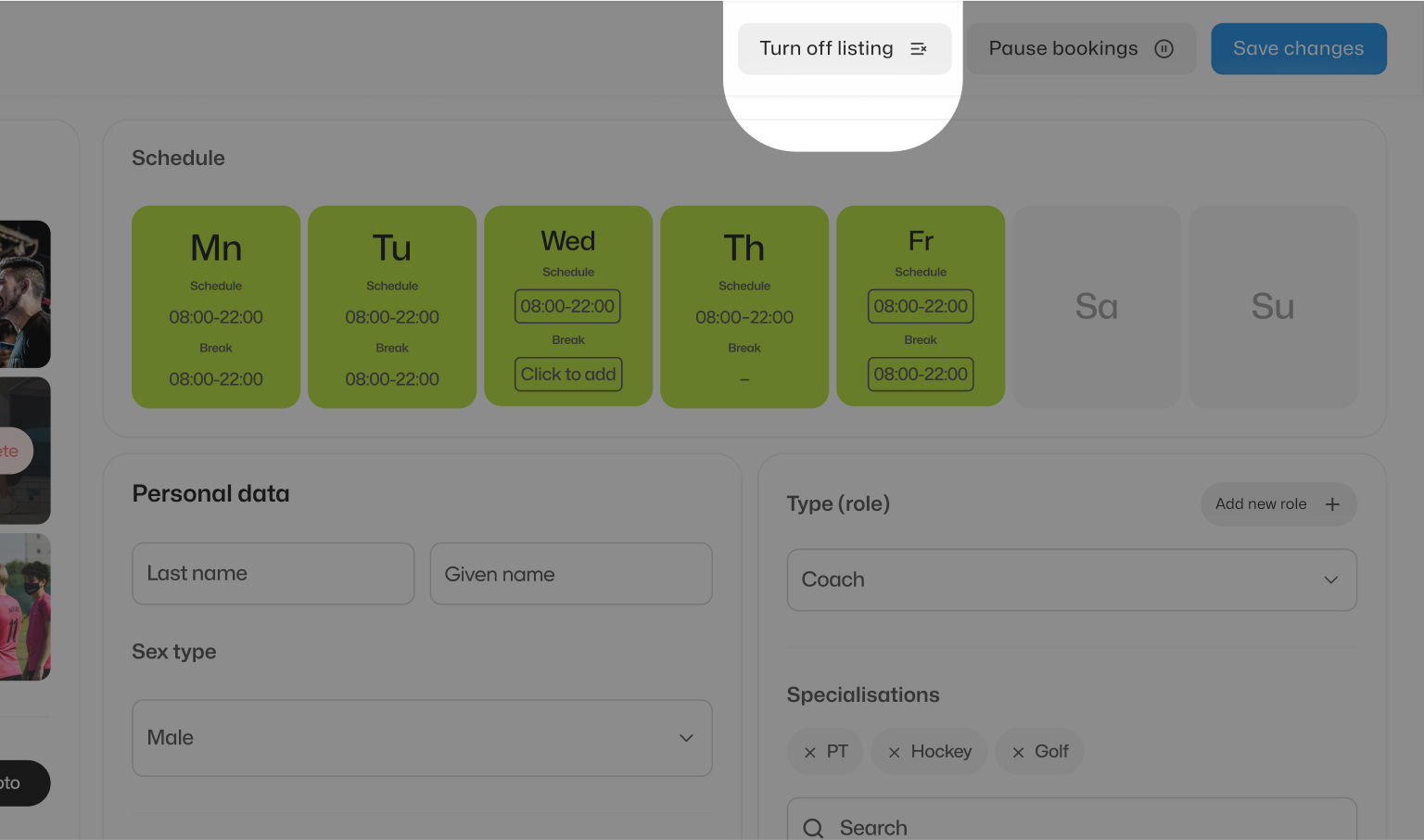
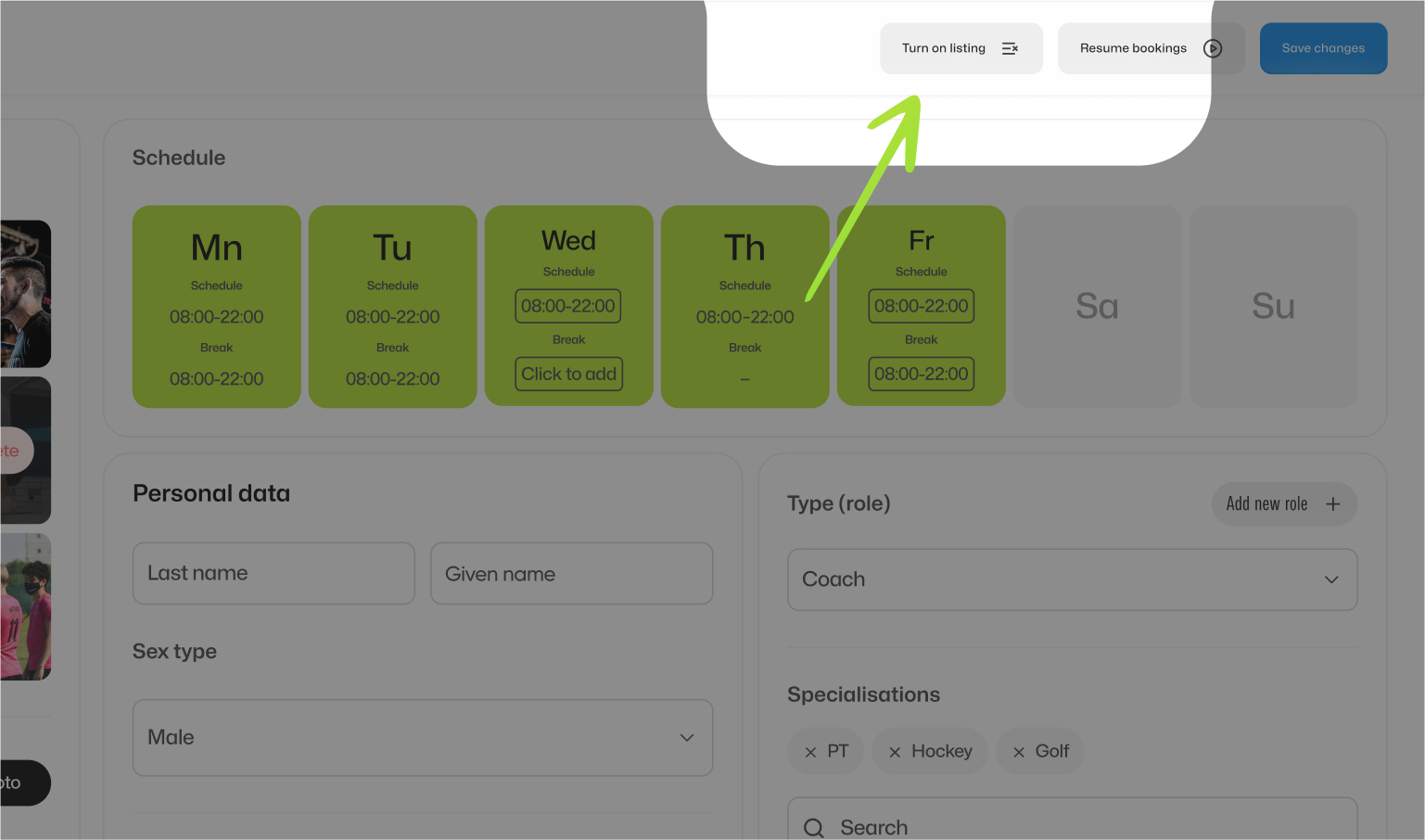
To publish your specialist profile on the GetSport platform, you need to fill in the information in the 'Profile' tab and save the changes. To remove your profile from the GetSport listings, click on 'suspend profile display' next to the save changes button.
Profile Settings
Photo upload
In the profile section, you can add various details about yourself. For example, you can upload photos. To do this, click on the 'add photo' button and upload any number of your photos, each with a maximum size of 5MB in either jpeg or png format.
Your photo (or photos) should not contain any text or captions, and it should be of high quality. Shocking photos or images protected by copyright cannot be posted on GetSport. Content that violates our rules will be removed, and the responsibility for copyright infringement lies with the user who violated it.
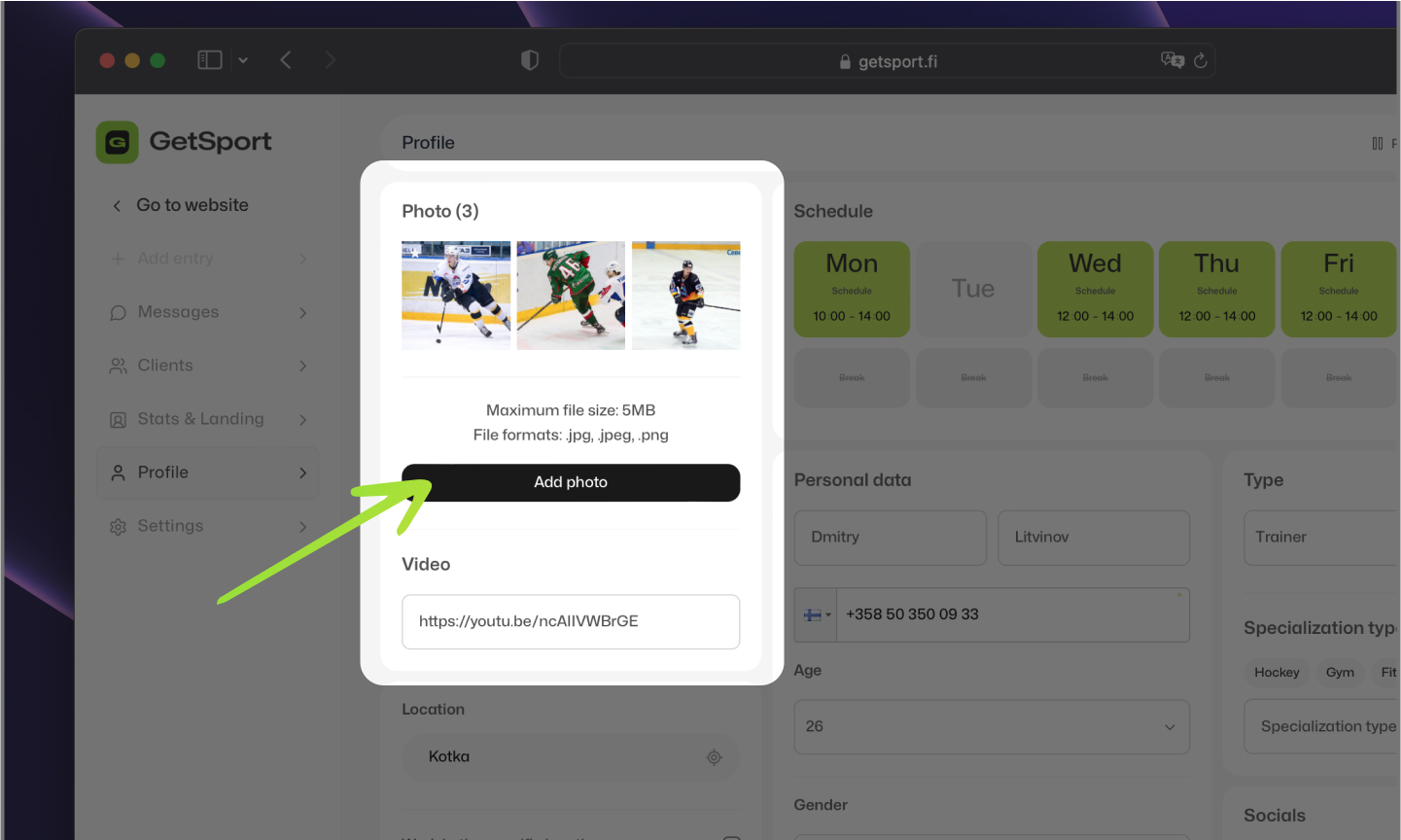
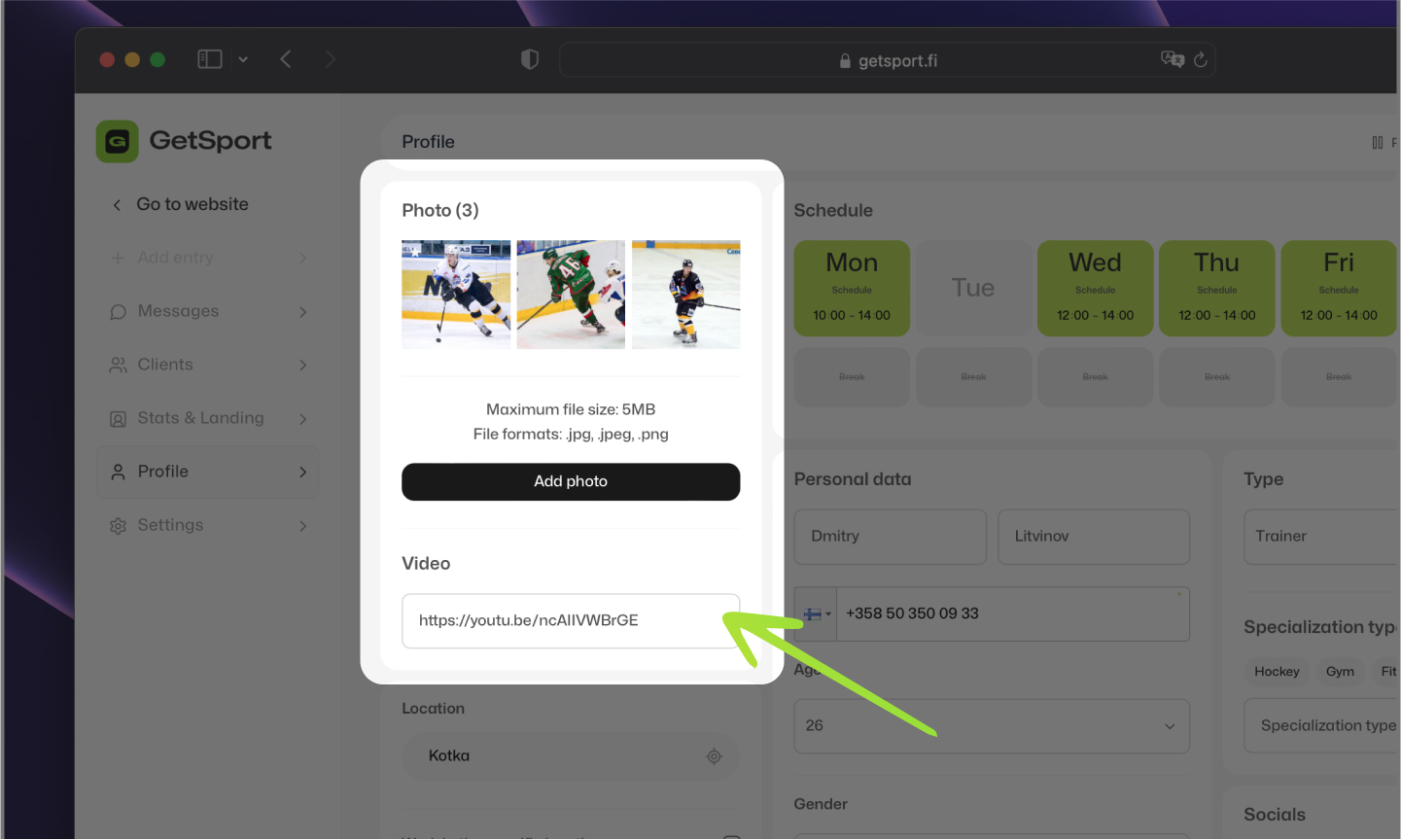
You can add videos from YouTube to your profile by inserting the link to the desired video. The video should be publicly accessible or accessible through a link, but it cannot be a private or unpublished video. Please note that your video must comply with both YouTube's rules and GetSport's community guidelines. It should be polite, clear, and should not contain any shocking or inappropriate content.
Specific location & Map
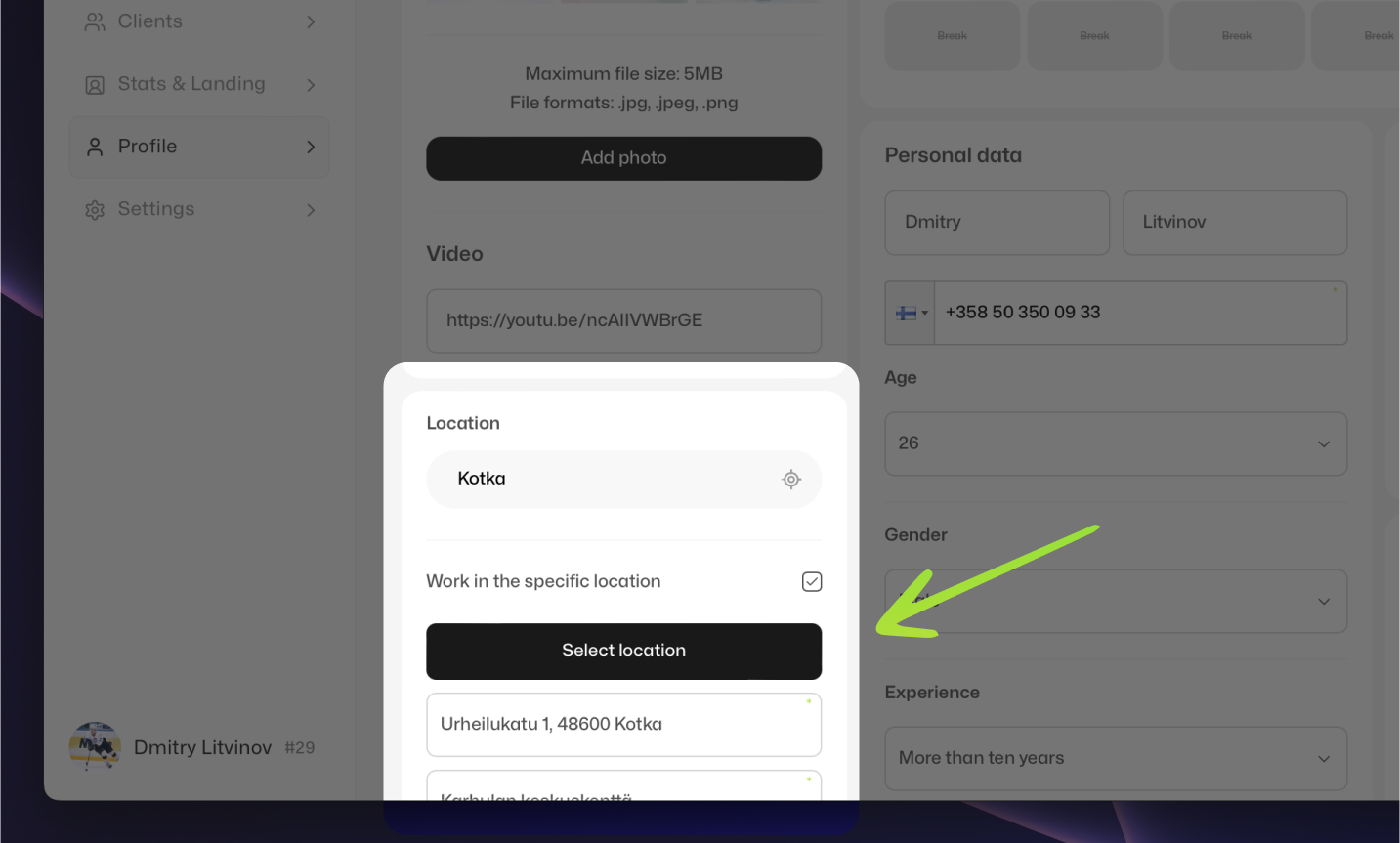
You can specify the city where you work, and if you work only in a specific location (or have a place where you work most often), you can provide the name and address of that place.
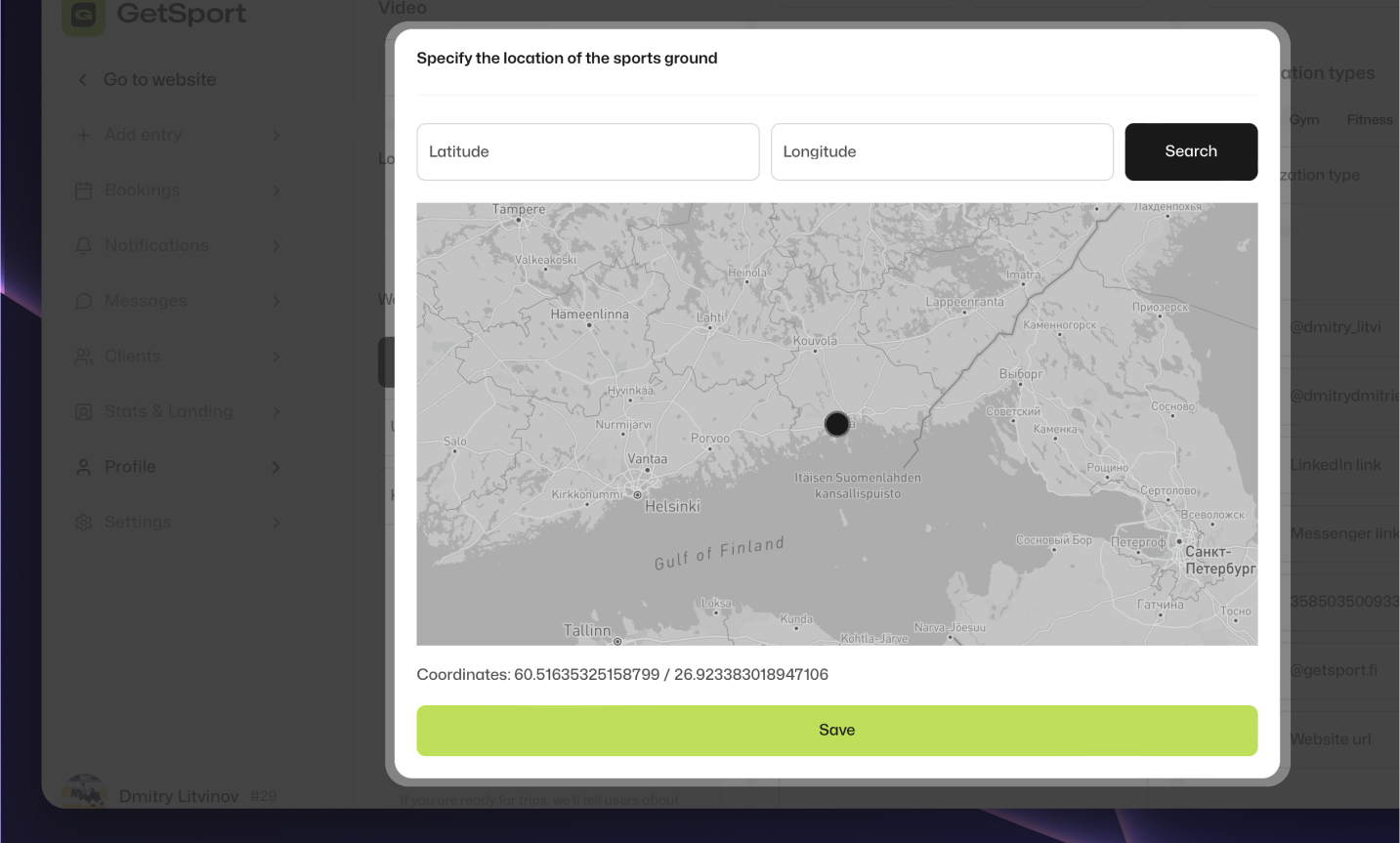
Please note that on GetSport, for accuracy, you should provide the coordinates of your specific location. If you do not know the coordinates, you can mark the location on the map where you work.
Offsite work & Specializations
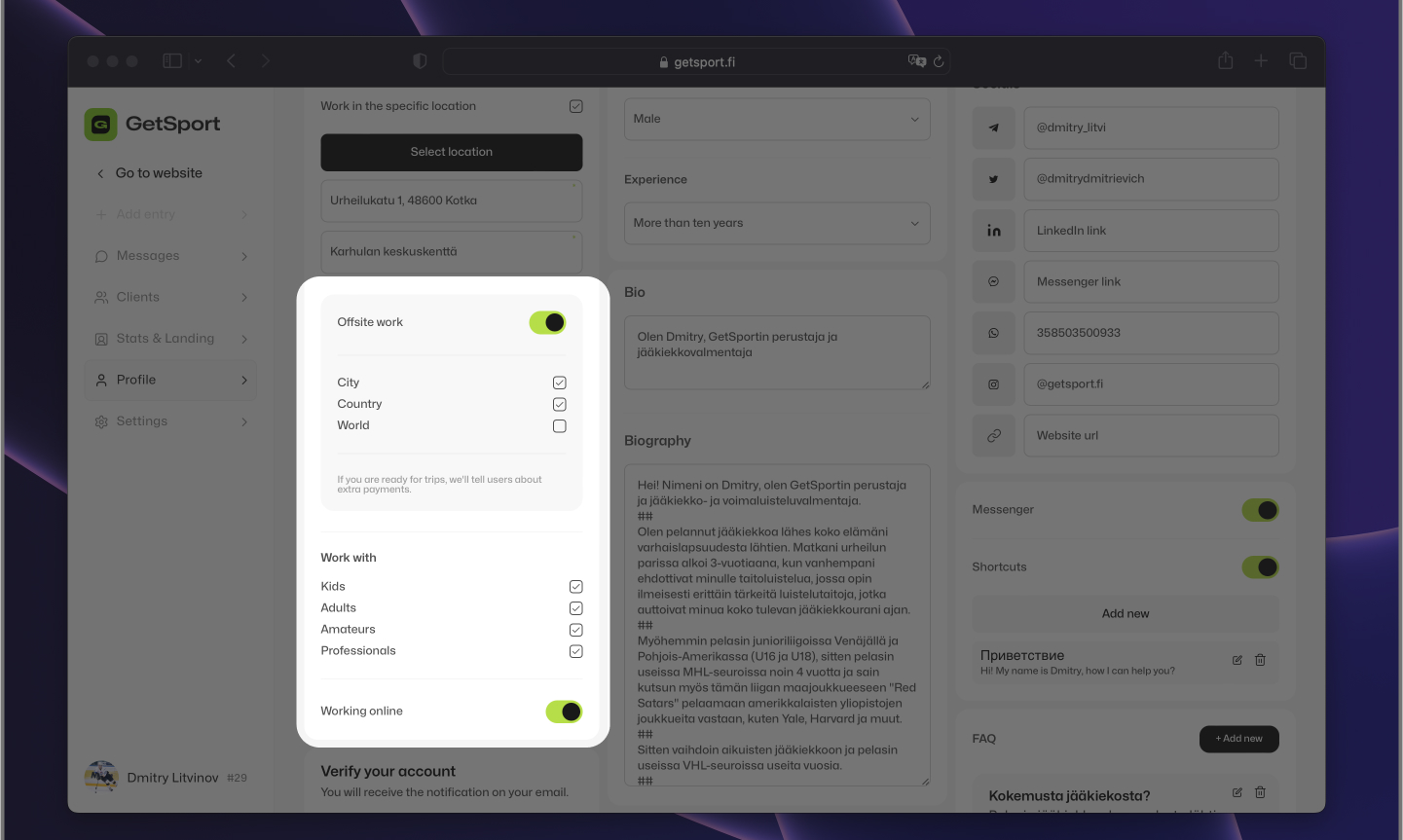
On GetSport, you can specify whether you offer services with 'travel options' within the city, country, or even internationally. You can also indicate whom you work with: children, adults, professionals, or non-professionals. This will help potential clients better understand your specialization and collaboration possibilities.
Work phone number
If your work phone number is different from the one you used during registration, you will need to provide your work phone number.
Biography
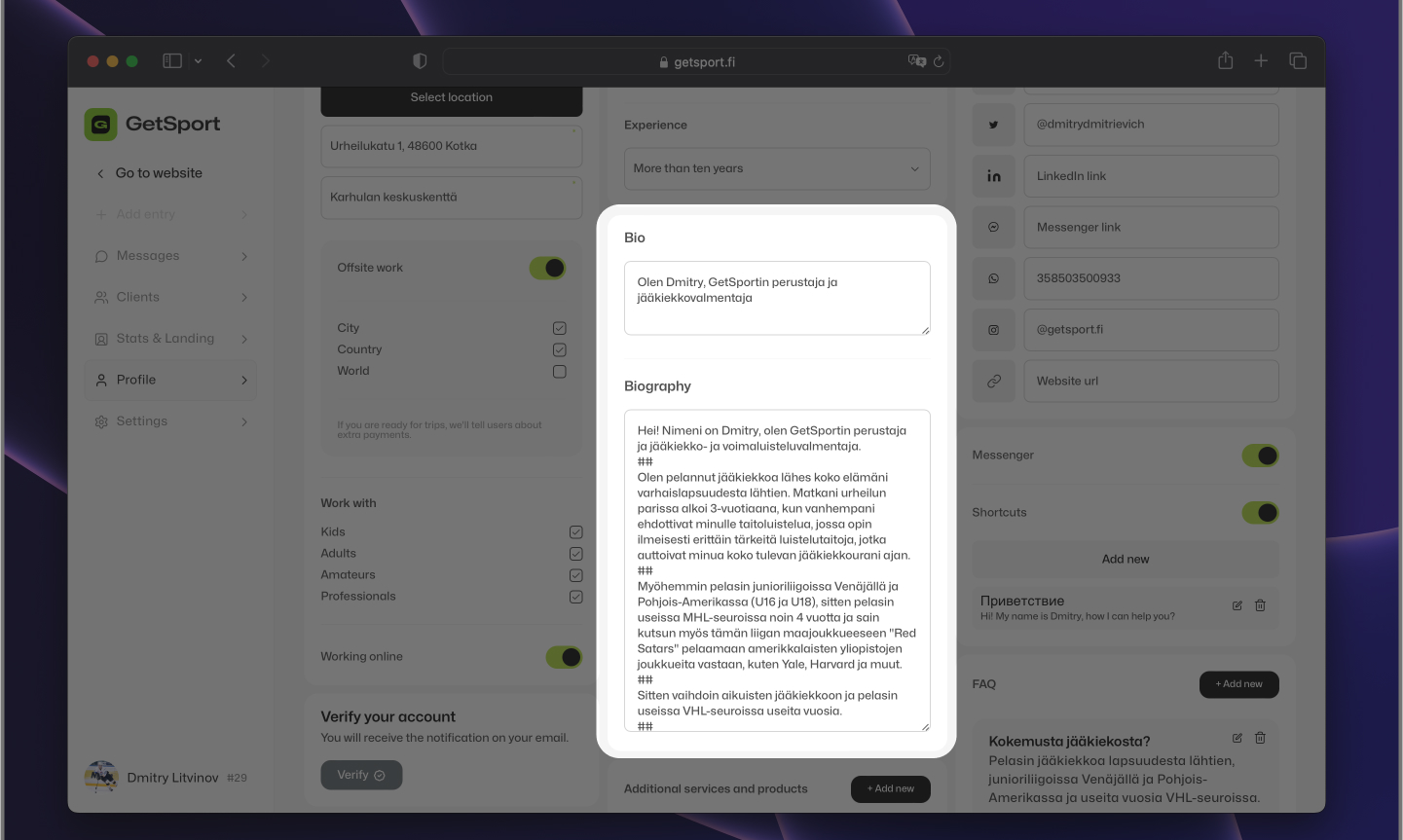
Next, you can choose your gender, age, and work experience. Additionally, you can write two biographies: a short BIO and a longer narrative about yourself. The short BIO will be displayed in the listings and at the top of your profile on GetSport, while the longer biography will be shown only in the lower part of your profile.
In the longer version of your description, for reference, we suggest you write about yourself, how you entered your profession, where and how you studied, the number of years you have been working, the types of clients you have worked with, and perhaps share success stories of your clients. Additionally, you can explain why clients should consider working with you and the benefits they can expect from your services.
In this and other text fields, use '##' to create a paragraph break.
Bookings & Calendar
Adding Services
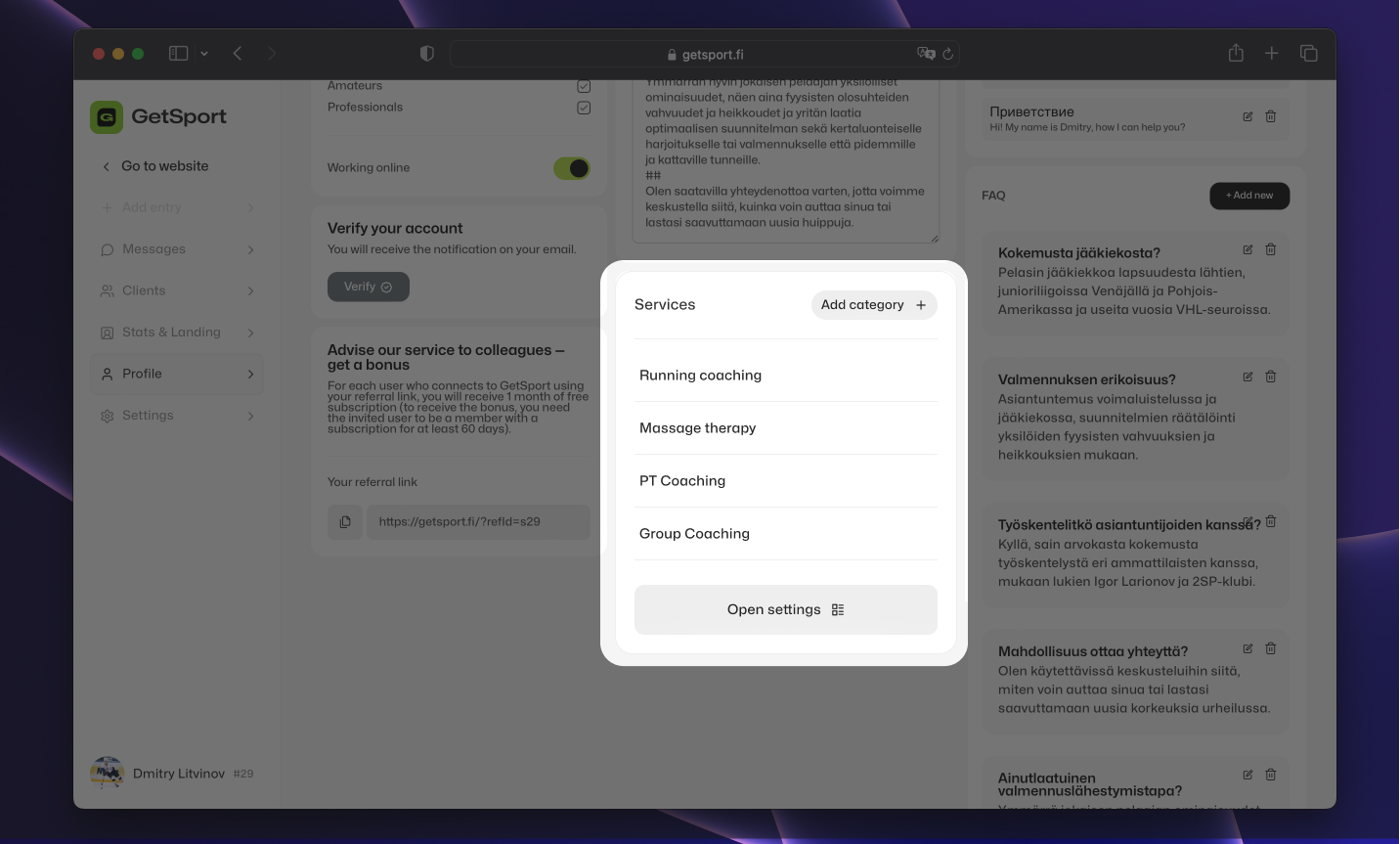
Next, you can add your services. To add a new service, click 'Add new'. You will need to enter the service name, description, price, and duration. If any of your services do not have a fixed duration or cannot be predetermined, you can select '—' (or 'do not specify' option) from the dropdown menu for the service duration.
Services settings
When enabling booking, you will need to specify the following details for each service:
- Availability: The days and times when the service can be booked.
- Duration: The start and end times for each booking slot.
- Break Time: The automatic pause that should be set after each completed booking. For example, if you set a 15-minute break time and a client books from 13:00 to 14:00, the next available booking slot will be from 14:15.
- Maximum Bookings per Day: The maximum number of bookings allowed in a day for that specific service.
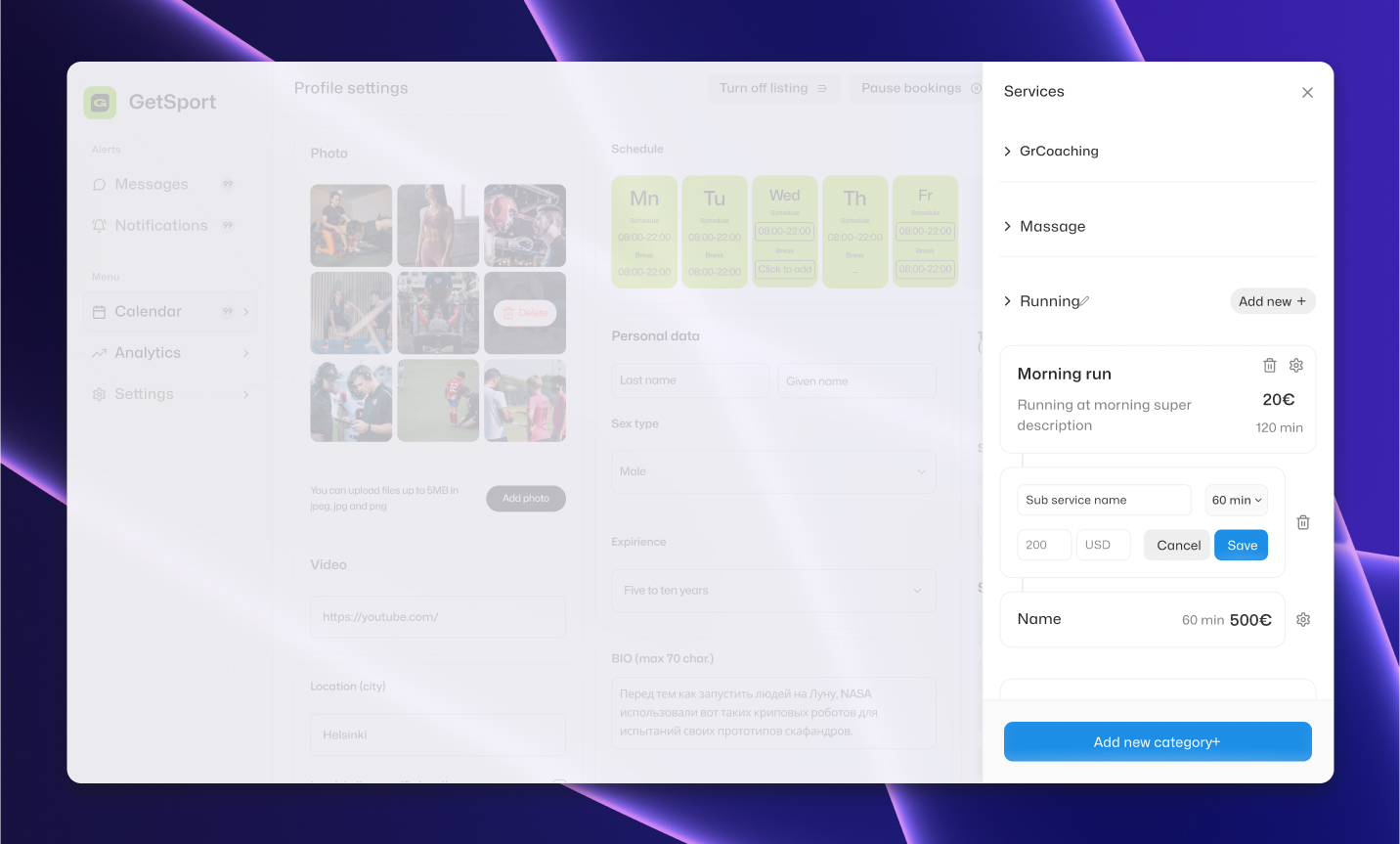
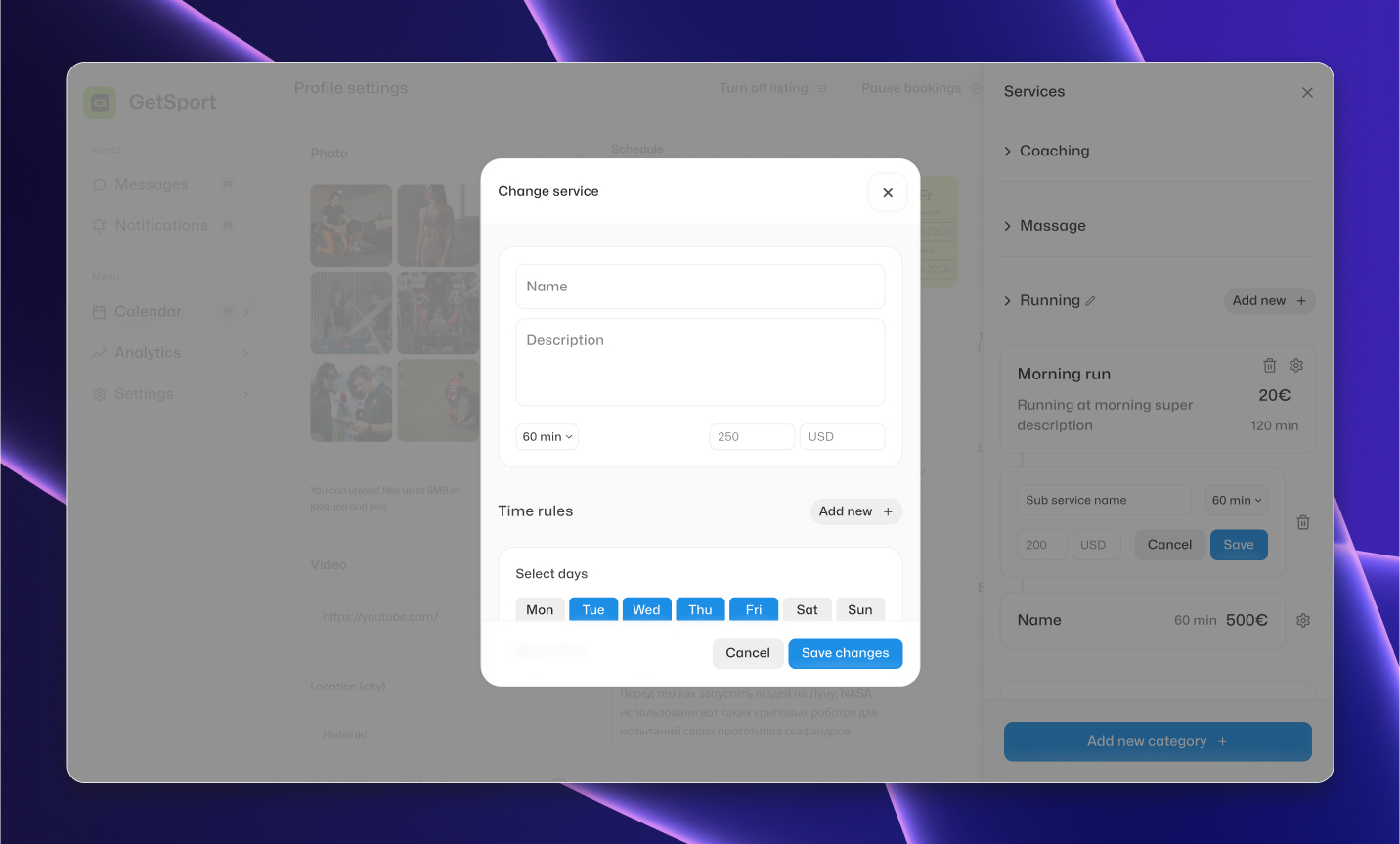
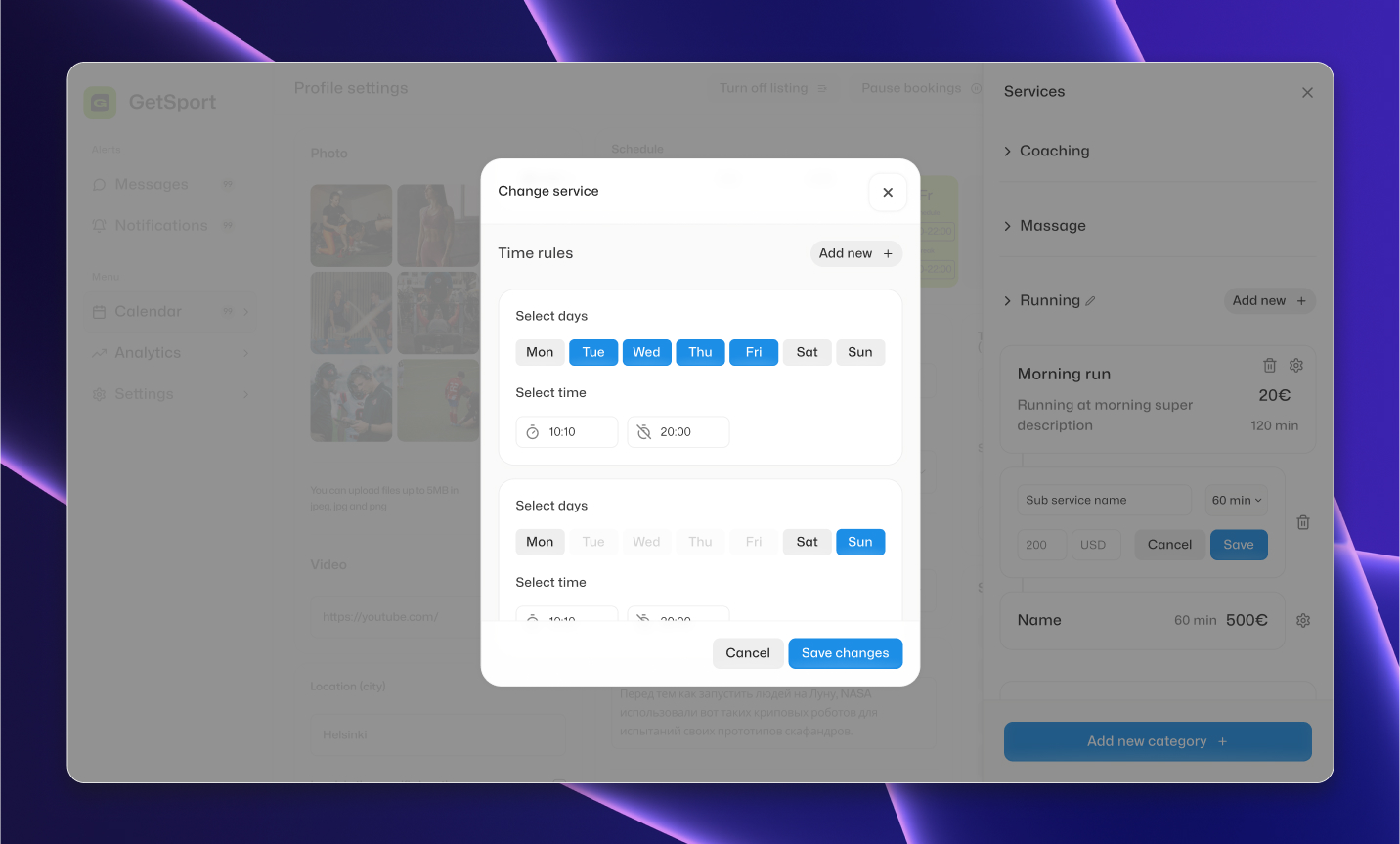
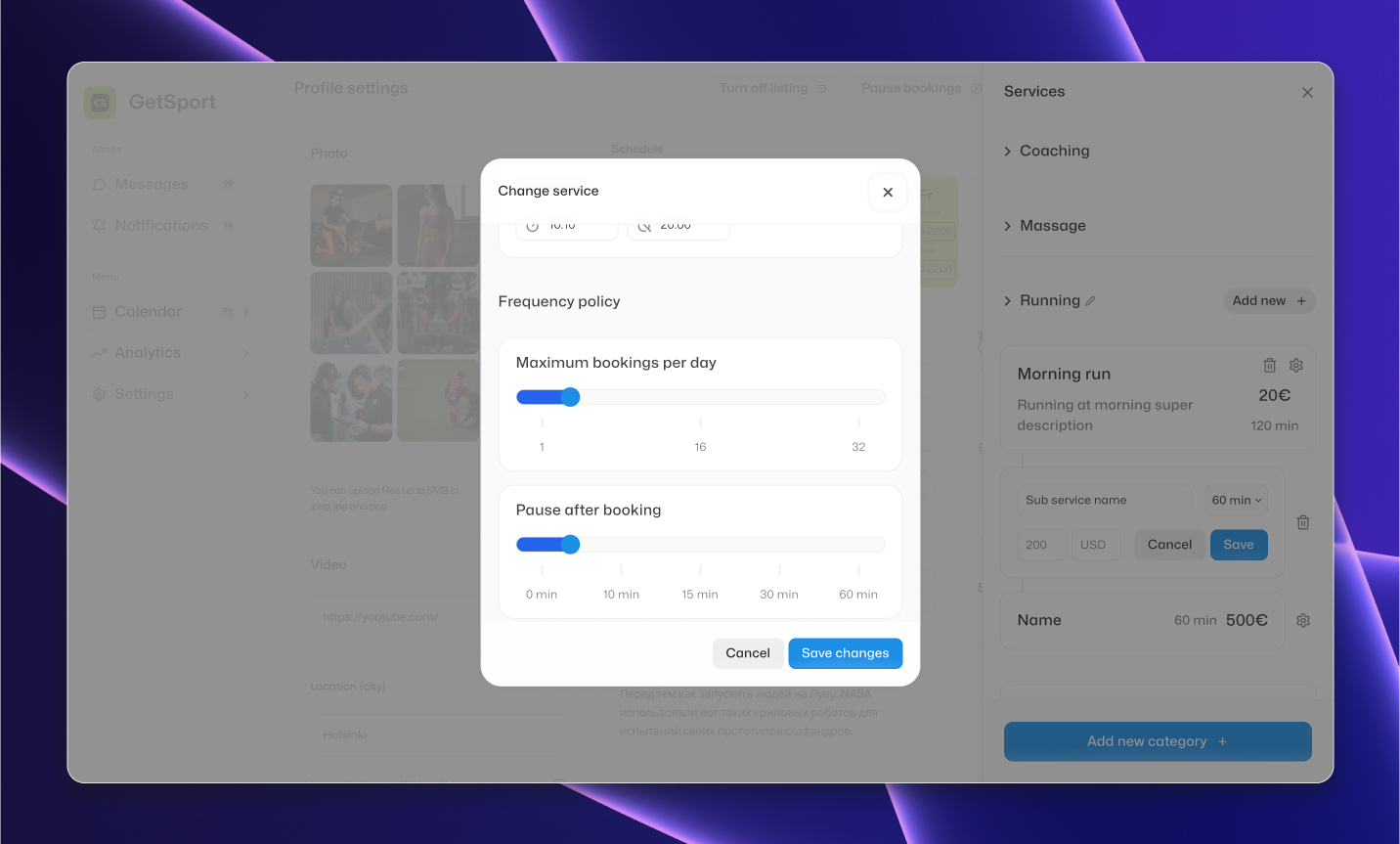
Booking settings
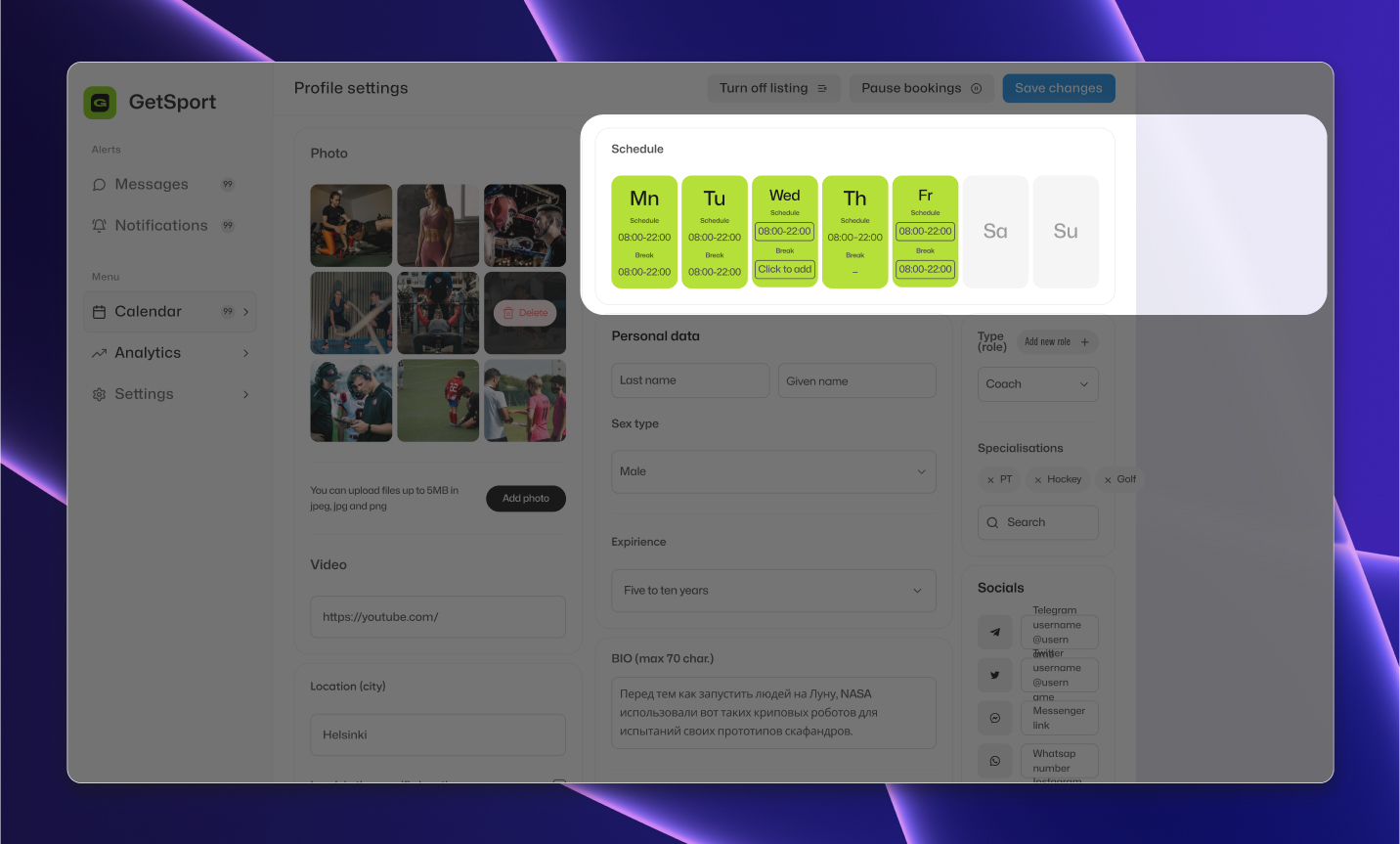
Please note that the start time, end time, and breaks during your working hours are automatically generated (added) based on the work schedule you fill out separately in the settings.
Pay attention to the section for adding the schedule. By default, all days are marked as days off. To change this, click on the day of the week, then add the working hours in the 24-hour format (e.g., from 10 to 16), and specify any breaks in the schedule, if applicable.
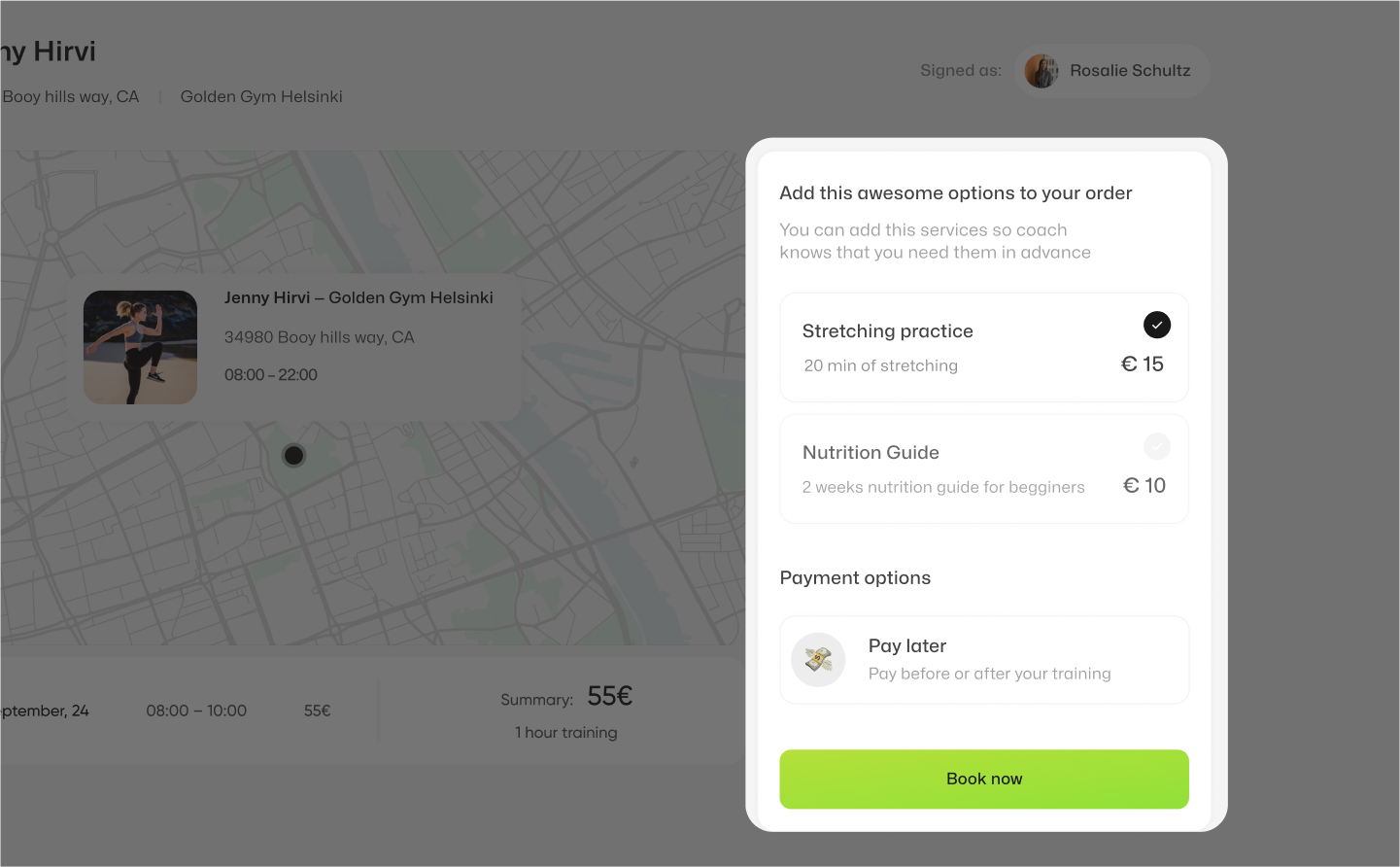
If you have at least one service with a specified duration, you can enable online booking for your services. This will allow users to book your services online directly from your profile on GetSport. Additional services will be displayed to your clients at the checkout after they select one of the primary services for booking.
Later, you will also have the option to create a booking page, which will be a separate page on the GetSport platform showing only your schedule. Users will be able to make bookings directly from this page. This can be convenient if you want to share a direct link to booking your services on your website or from your social media platforms.
Overbookings
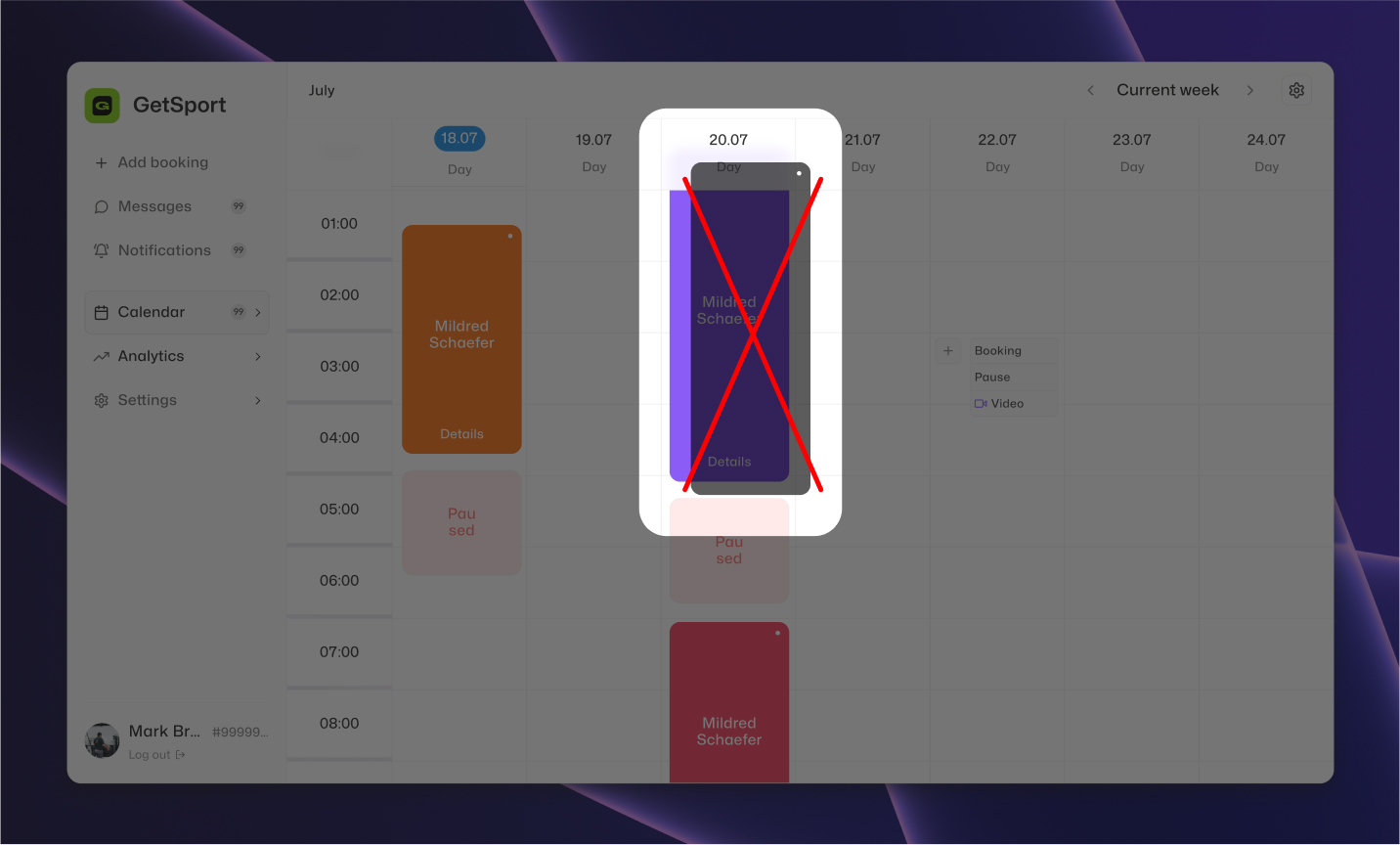
Please note that if you specify conflicting time slots for your services, for example, if you have 2 services available every day from 10:00 to 16:00, when a user makes a booking for one service, the other service automatically becomes unavailable for booking during the same time in the same day.
For instance, if a user books one service from 10:00 to 11:00, the other user won't be able to book the second service during the same time slot.
Booking calendar
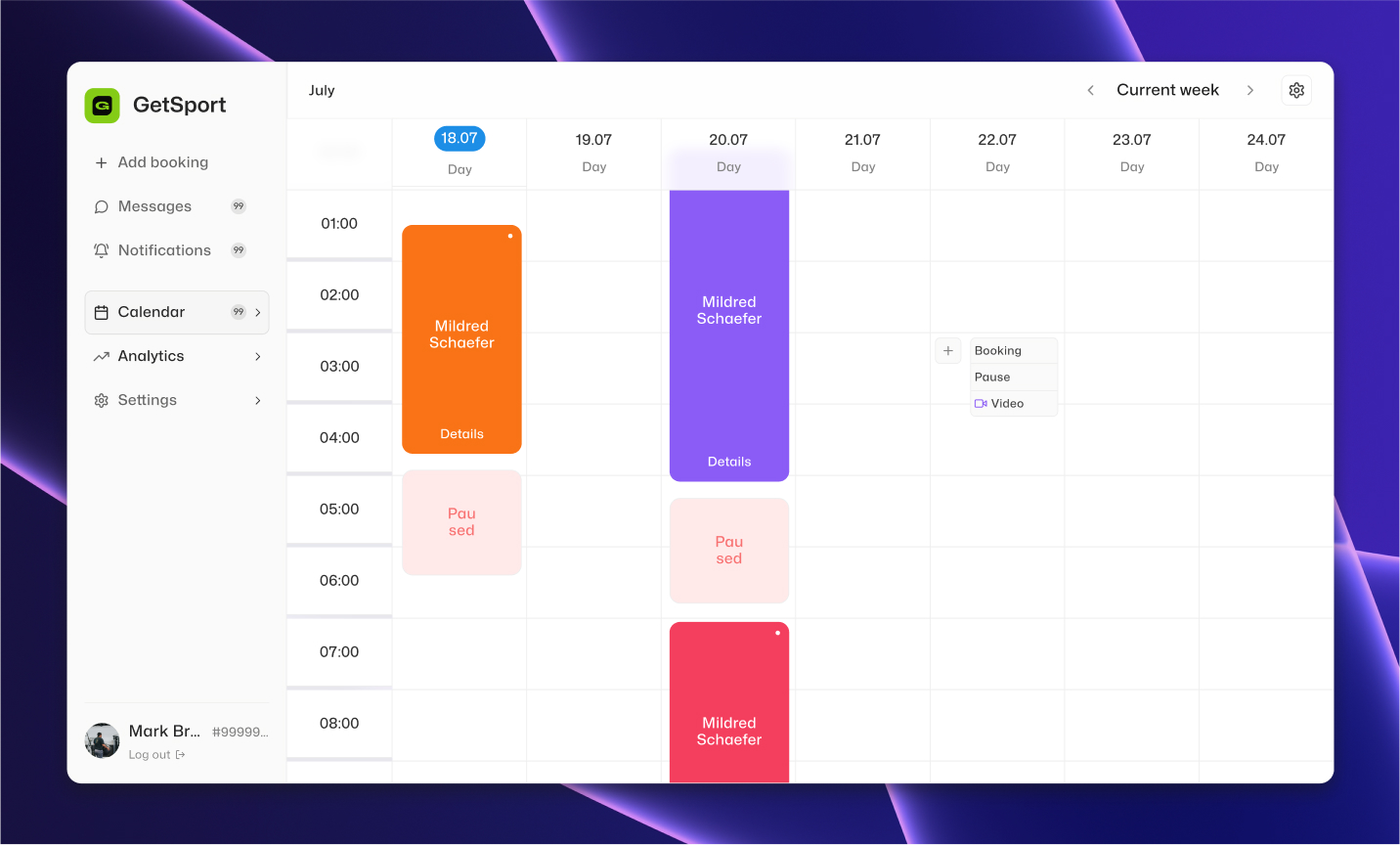
In the bookings calendar, you can view your current bookings from different clients and the bookings you have created manually. Bookings from clients are automatically added to your calendar. Manual bookings can be added by yourself. This is useful, for example, if you accept bookings over the phone or at the reception desk.
Manual booking
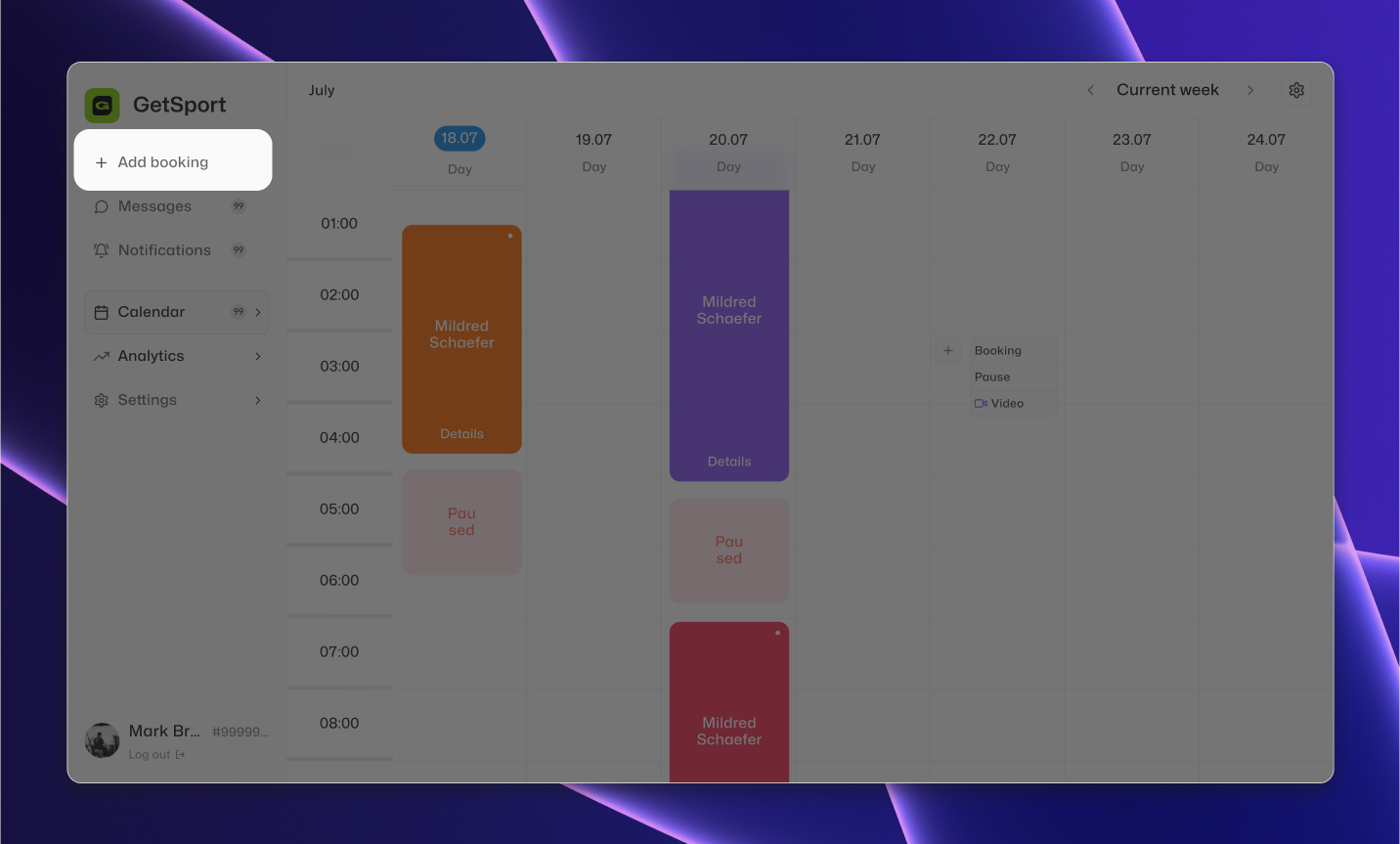
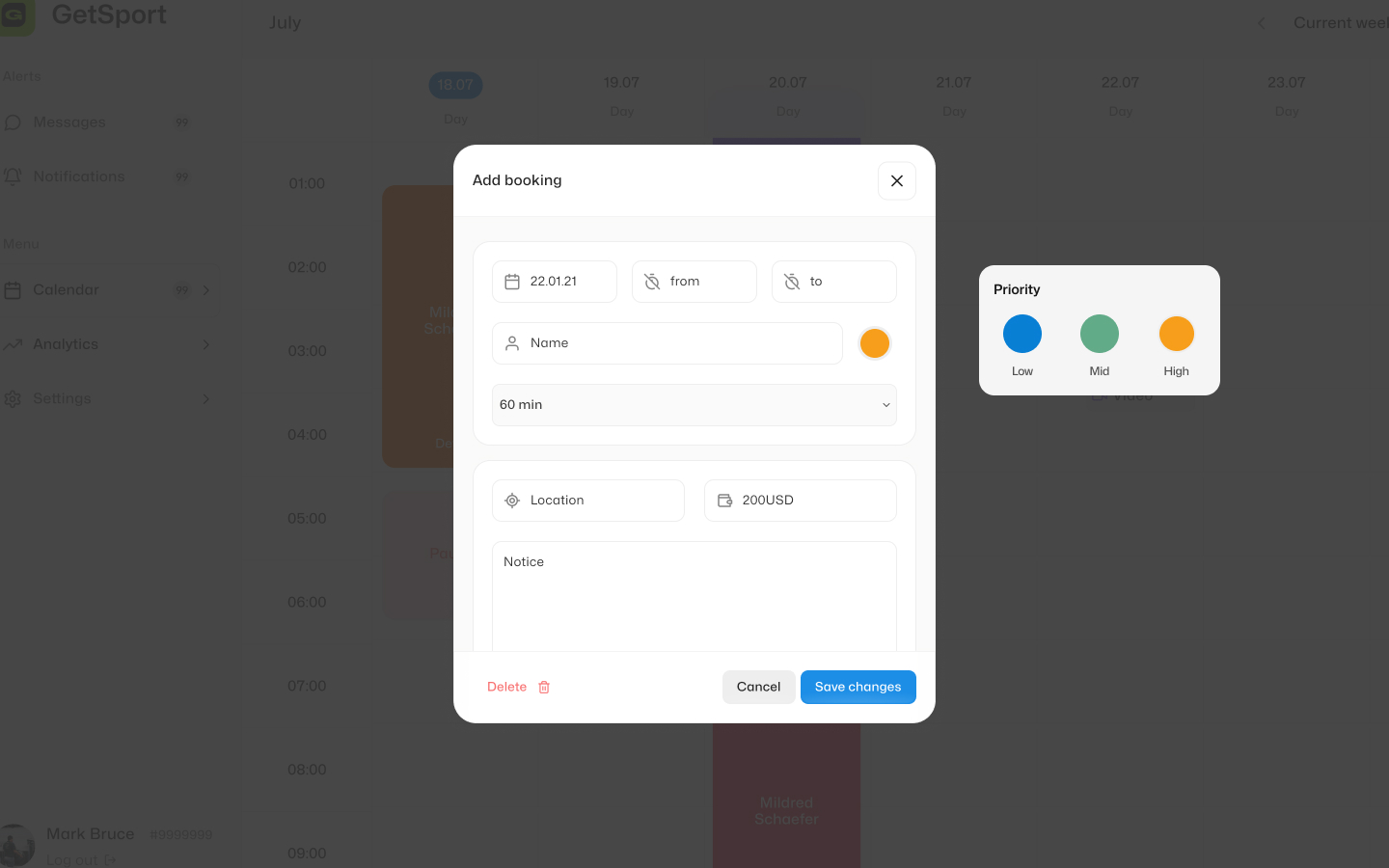
To create a manual booking, you need to click on "Add Booking" in the administrative panel, and a modal window with booking settings will open. You can specify the client's first and last name, date, time, location, and cost of the session.
Pause bookings
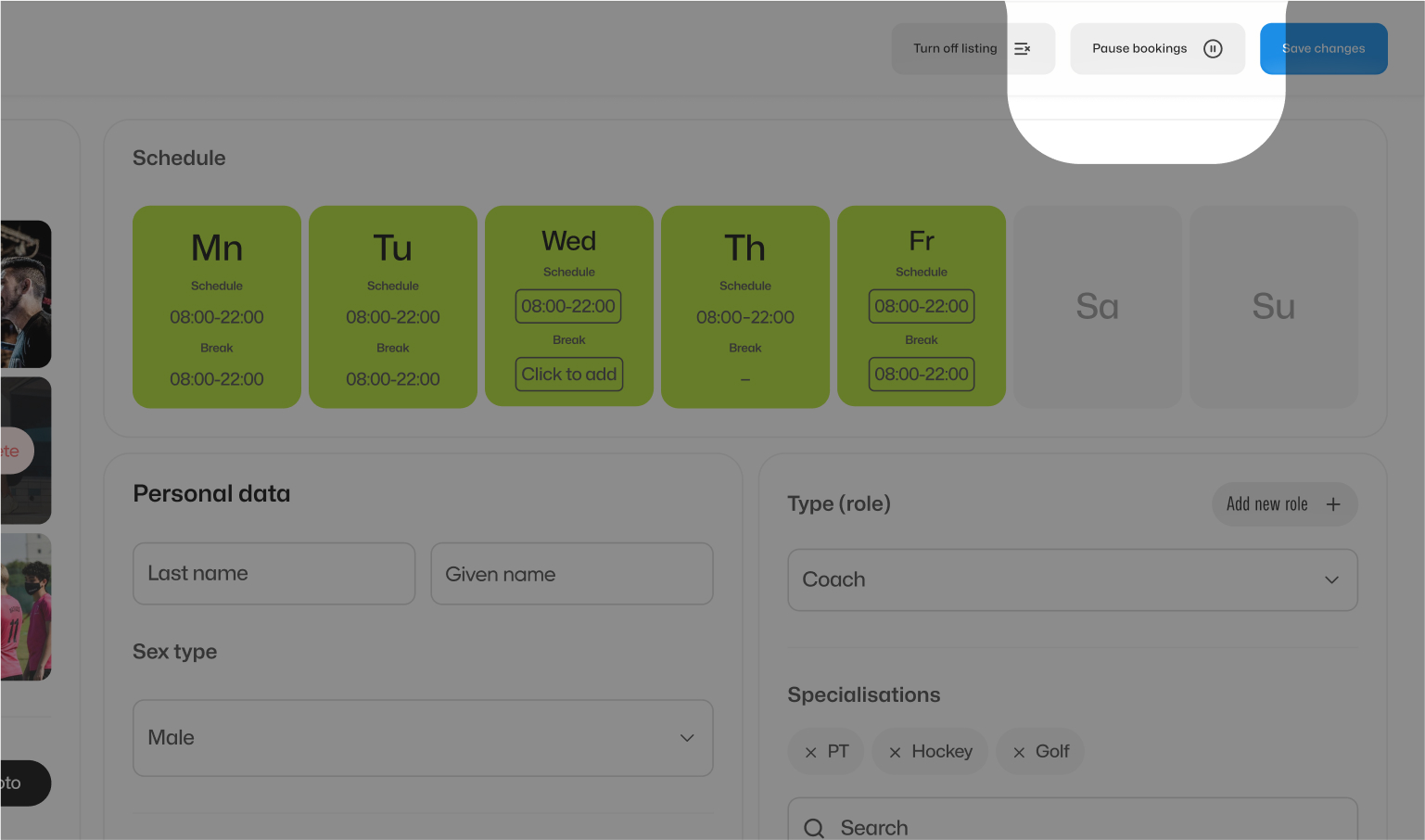
You can pause bookings without stopping the display of your profile on GetSport. To do this, simply switch the booking status to inactive in the "Profile" section. You can also close booking for specific days or certain hours within a day. These settings can be found in the calendar.
Other profile settings
Diplomas & certificates
In the "Profile" section, you can add details about your education. You can specify the name of the diploma or certificate, provide a description, and add an image in jpeg or png format. You can add an unlimited number of certificates and diplomas to your profile.

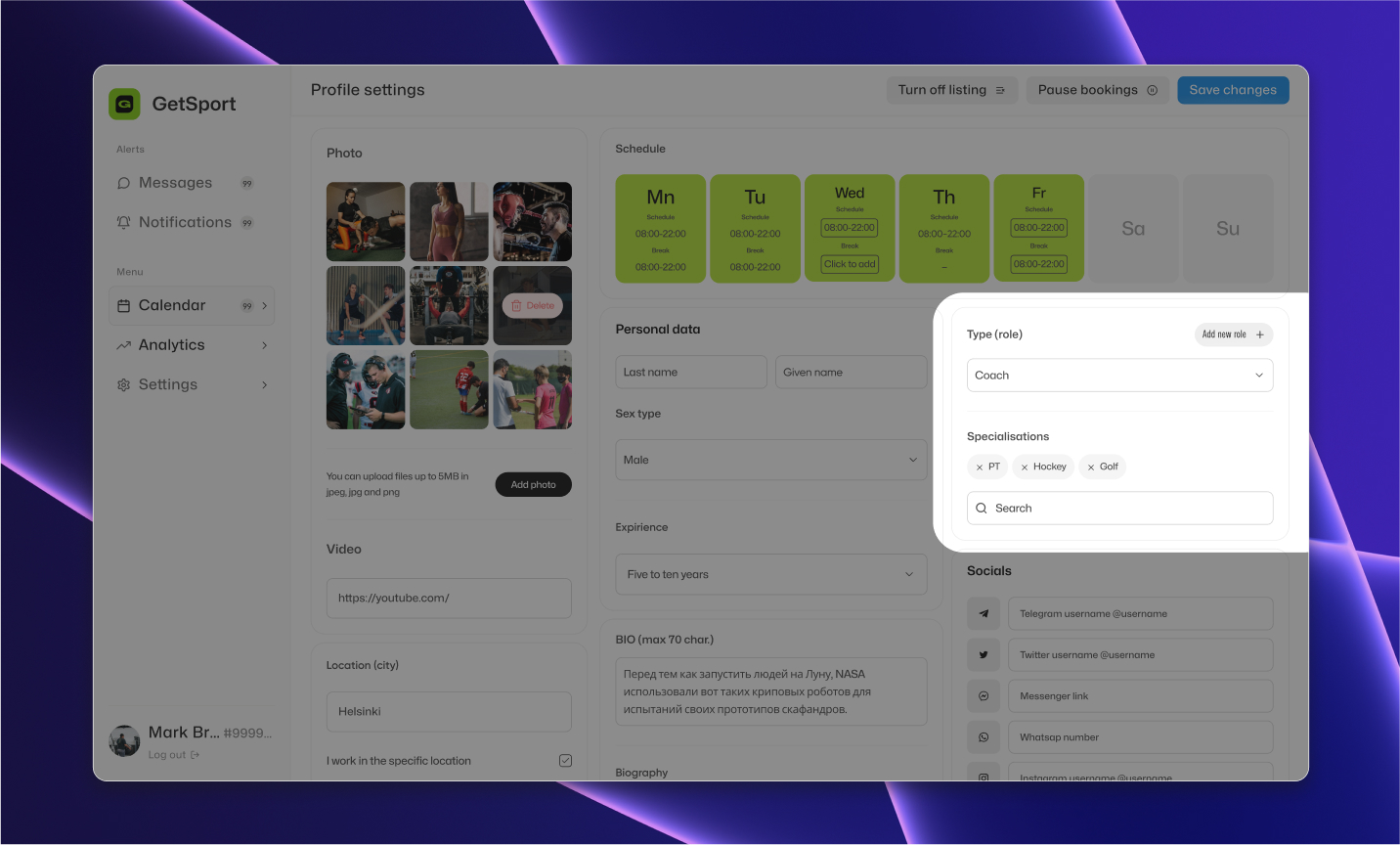
Adding roles (types of user)
During the registration process, you specified your primary role (e.g.coach).
In the admin panel, you can indicate your specialization. For example, if you are a coach, you can specify that you are a hockey coach or a fitness coach. The list of specializations includes more than 150 different specializations for coaches and over 50 for massage therapists, physiotherapists, and psychologists.
If you cannot find the desired specialization, we will add it for you.
Additionally, you can add an additional role if, for example, you are both a coach and a physiotherapist.
Messenger
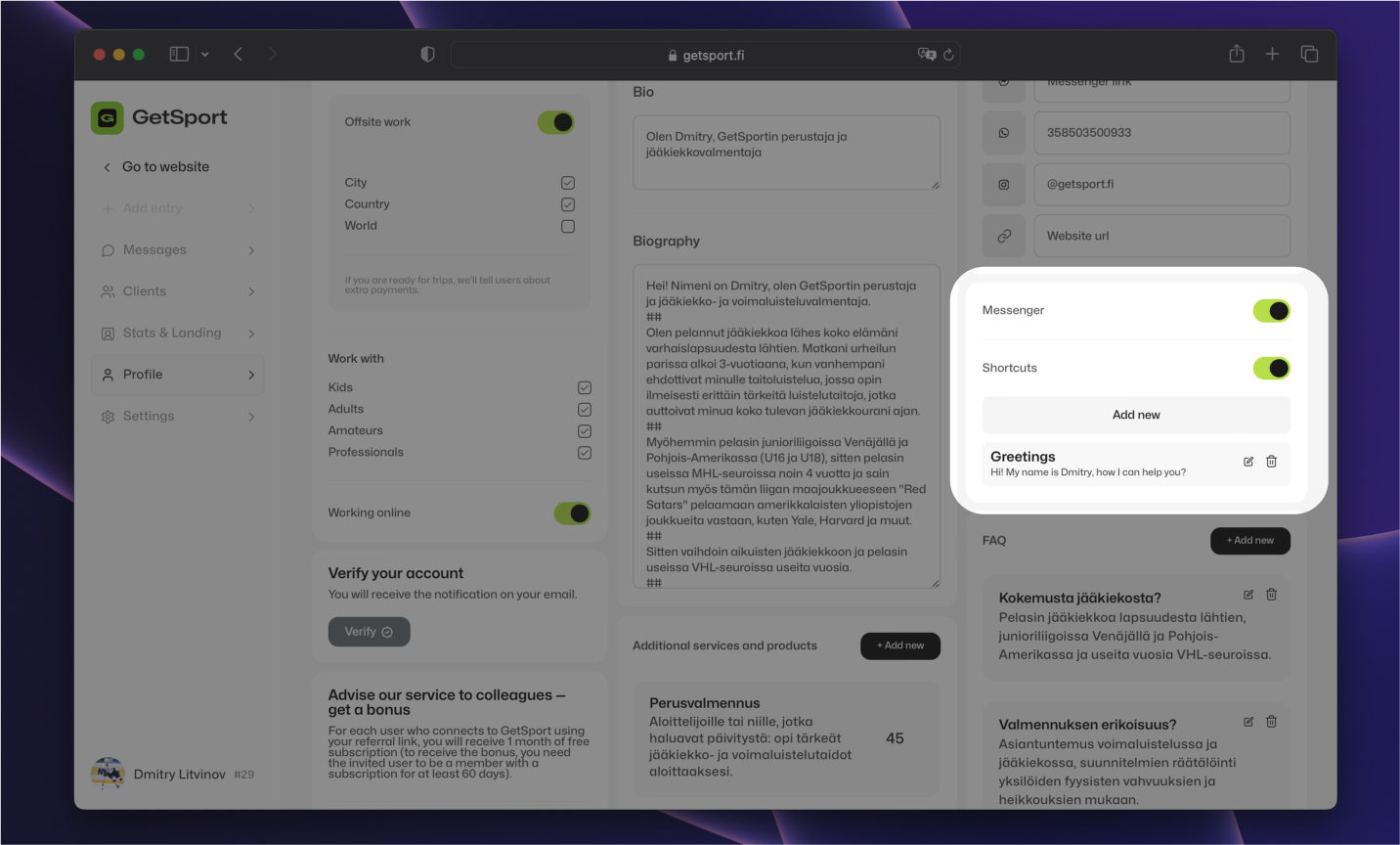
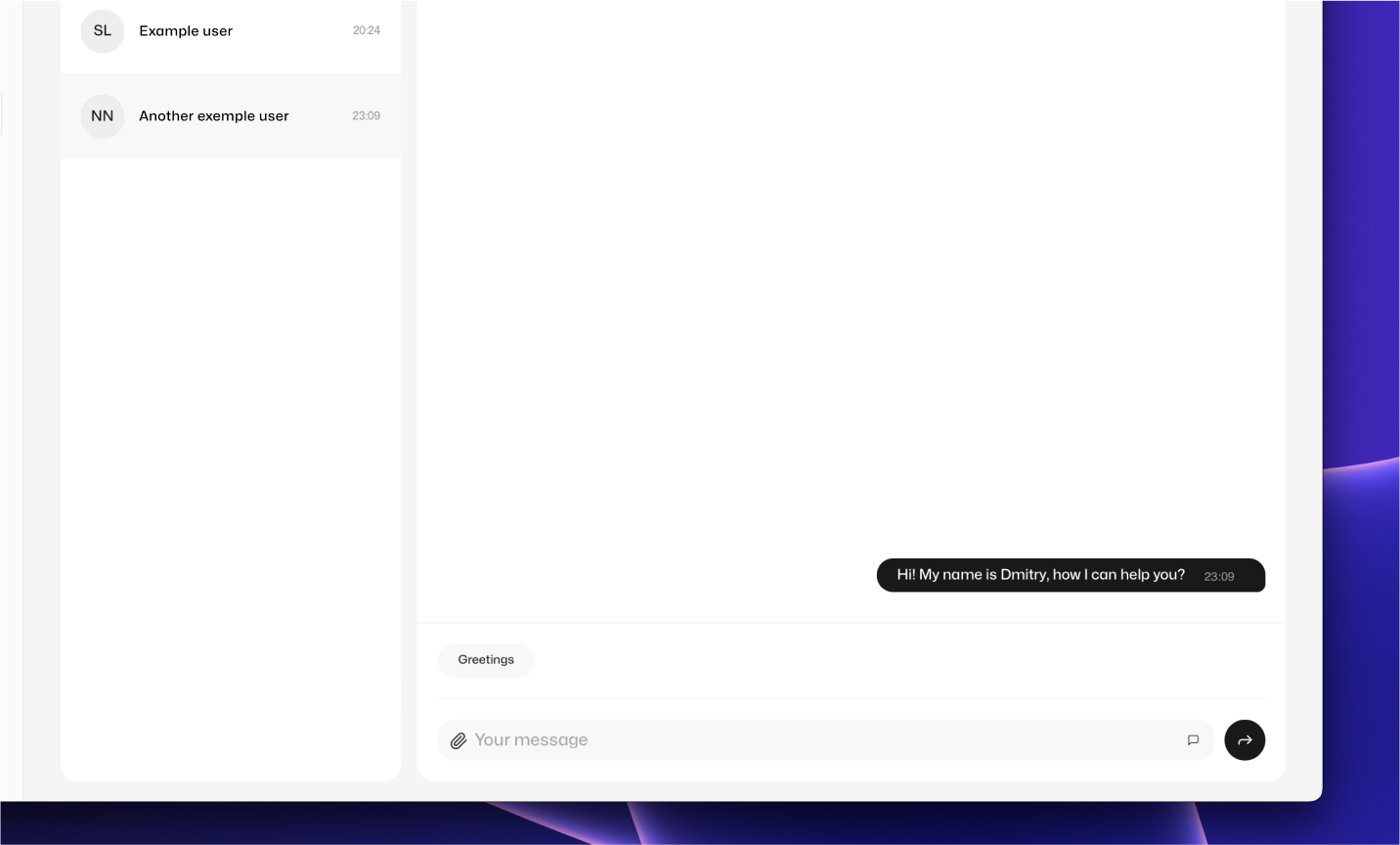
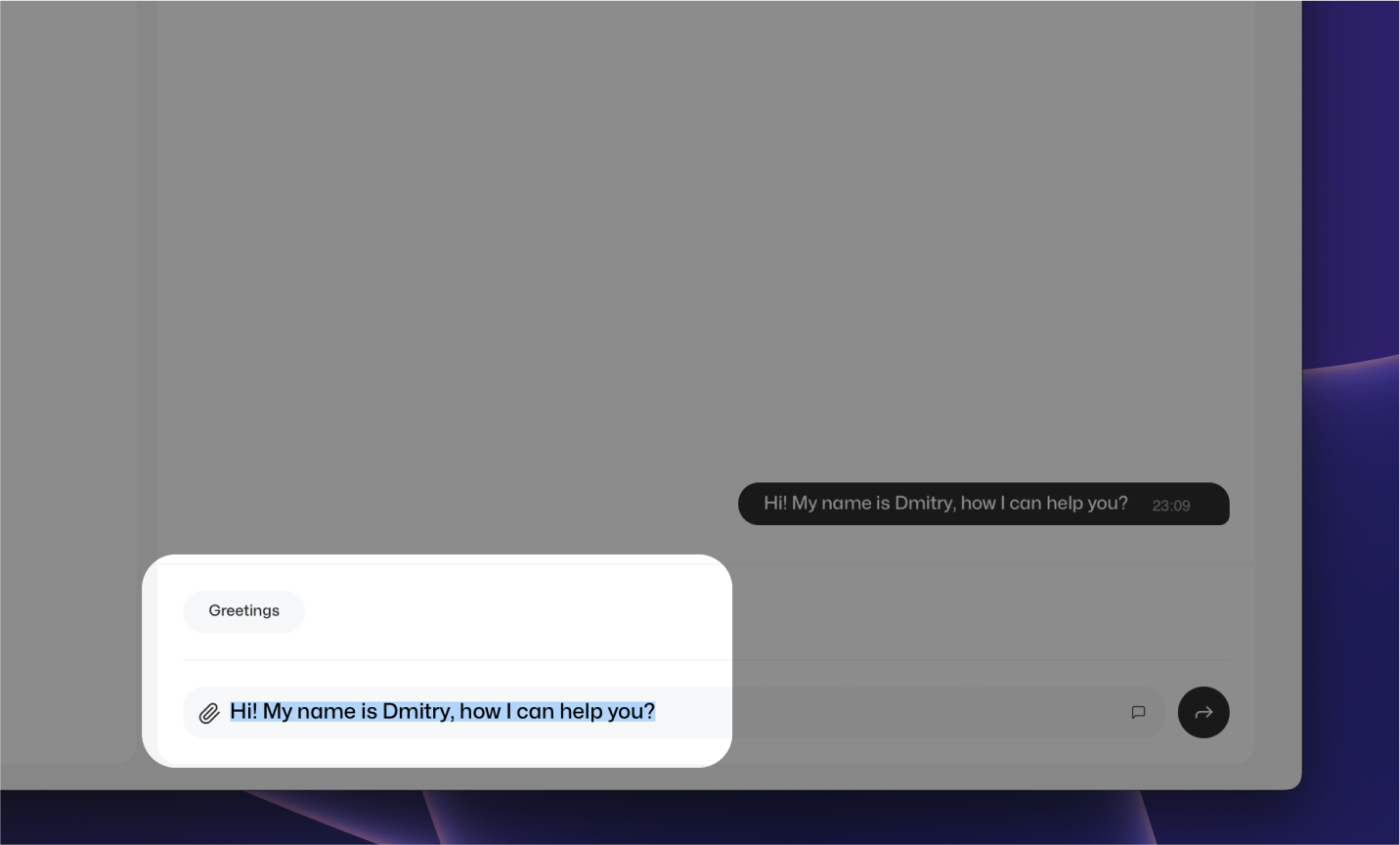
In the "Profile" section, you can enable the messenger / chat with clients. If you enable the chat feature, registered GetSport users will be able to message you directly from your GetSport page (form your profile). In the chat, you can also add "Shortcuts," which are message templates you can create to make communication with clients quicker and more productive. Each "Shortcut" can have a name that is only visible to you and the actual message text. When adding a "Shortcut" in the messenger, you'll have the option to edit it before sending.
Please note that if you have clients for whom you provide meal plans or workouts, the messenger will work for these clients even if the messenger is turned off in your settings (only connected clients).
FAQ settings
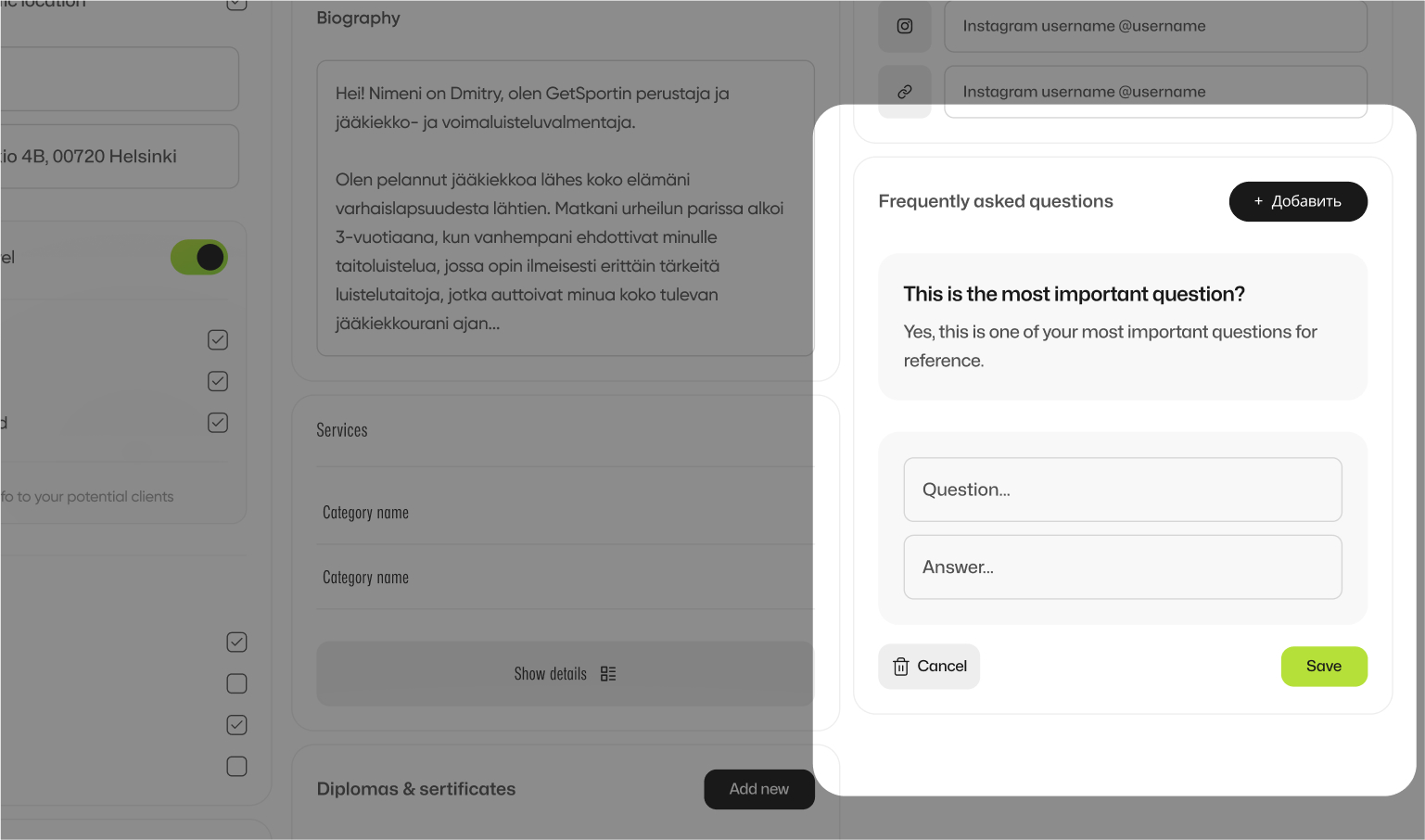
The last setting in the "Profile" section is FAQ (Frequently Asked Questions). You can answer frequently asked questions from your clients in this block. This FAQ section will be displayed on your profile on GetSport, providing helpful information to potential clients.
Landing & Stats
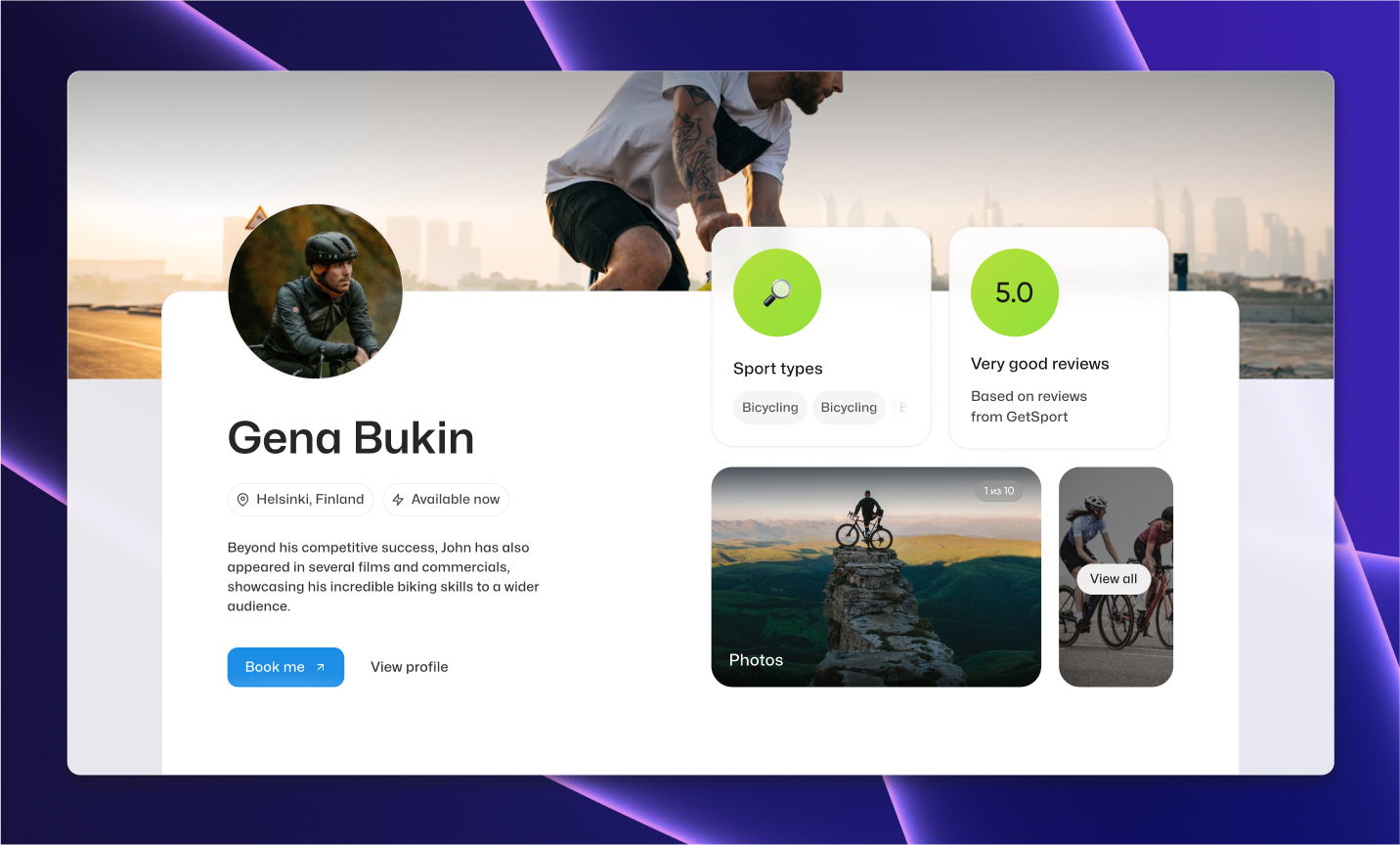
The "Landing & Stats" section is where you can enable your personal website. The site is automatically created based on the information from your profile. The main feature of this website is that, unlike your profile on GetSport, there are no links to other coaches and no GetSport service menu.
You can use your website for an unlimited number of scenarios: place a link to this site on your social media, create advertising campaigns to attract more potential clients, share the link to your website as an online business card, and do much more.
Currently, the available settings include enabling or disabling the website and configuring the link to your site. Soon, additional features will be added, such as adding your domain name and customizing the sections (blocks) of your website.
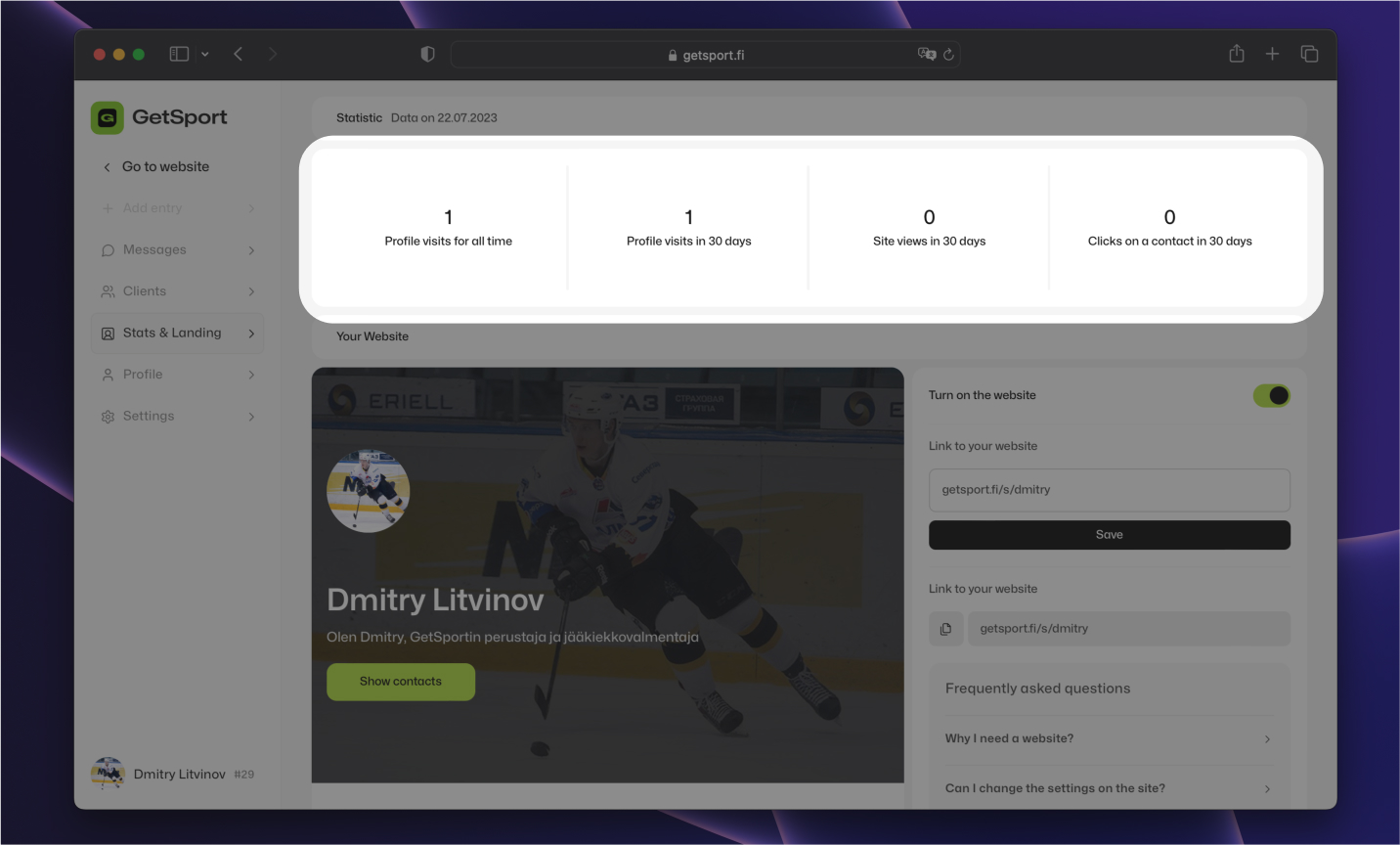
In the "Landing & Stats" section, you can also view statistics and performance data. Currently, the following metrics are available:
- Total profile views over all time.
- Profile views in the last 30 days.
- Clicks on contacts in the last 30 days.
- Views of your personal website in the last 30 days.
The statistics are updated in real-time, allowing you to keep track of the engagement and performance of your profile and website.
Clients
Clients tab
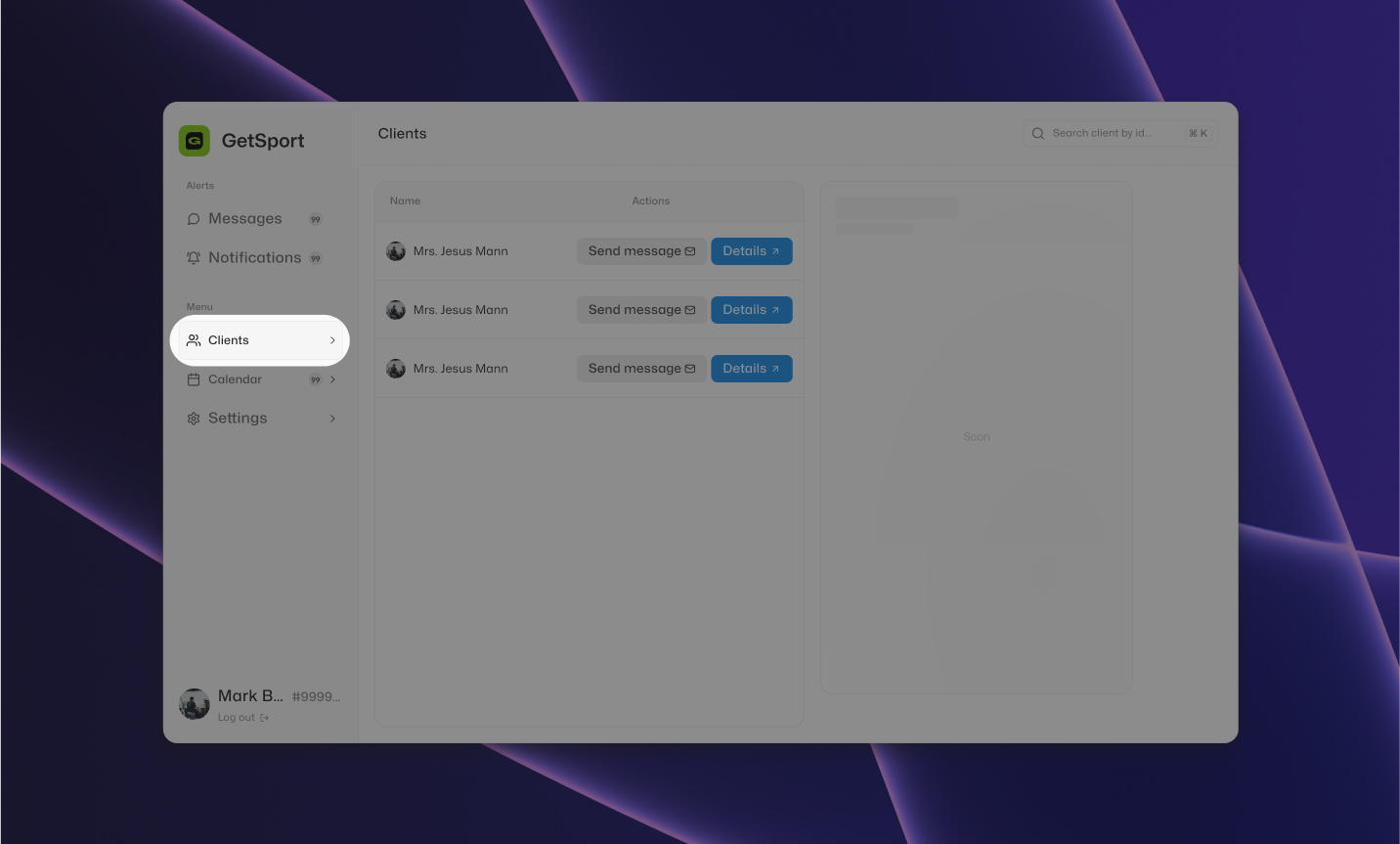
In the "Clients" section, you can see a list of your clients with whom you have a connection. For these clients, you can create meal plans and workout programs, exchange notes, and communicate with them using the messenger.
Additionally, you can view their statistics for various indicators such as weight, resting heart rate, sleep time, daily calorie intake, well-being, and more. This section provides a comprehensive view of your clients' progress and allows you to offer personalized guidance and support.
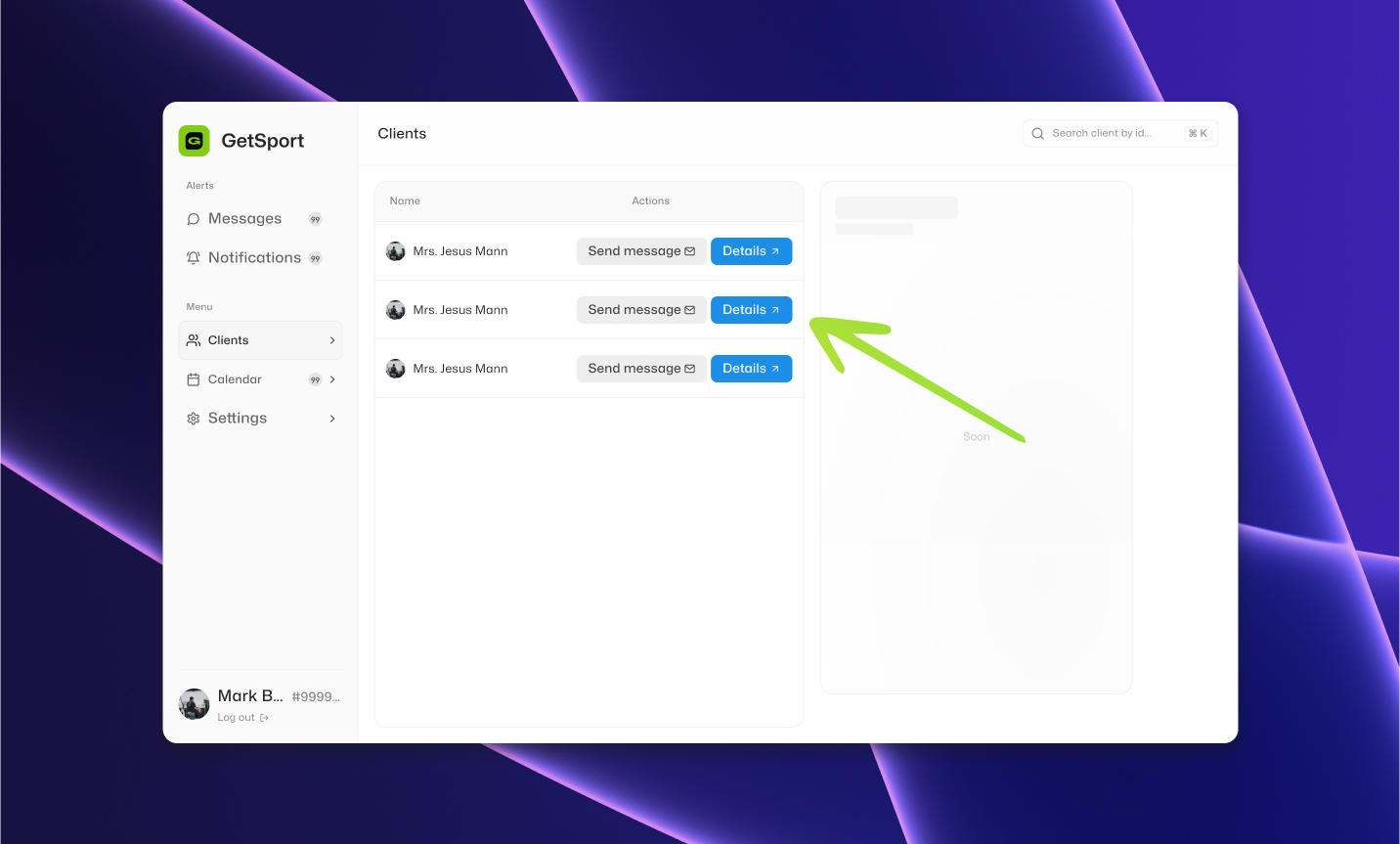
Adding a client
To add a client to the "Clients" section, you need to use the client search in the top right corner of your administrative panel and enter the client's ID on GetSport.
Then click add or directly on the client id in the list under the search.
Client and Specialist IDs
The client's ID can be obtained from the client themselves, as they (clients) can find it in the lower-left corner of their administrative panel (your ID as a specialist is also located in the same place). Once you have found the client's ID (when the client provides you with their ID), you can send them a request for connection and access to their meal and workout calendar. You can do this from the client search, as mentioned earlier.
Your client will receive a notification about your request in their administrative panel and via email. When the client accepts your request, the connection will be automatically established, and you will see the client in your administrative panel in the list of your clients.
It is important to remember that to link your specialist account with the client's account, the client's account must be a regular account on GetSport (not a professional account; this type of account is also known as an athlete's account).
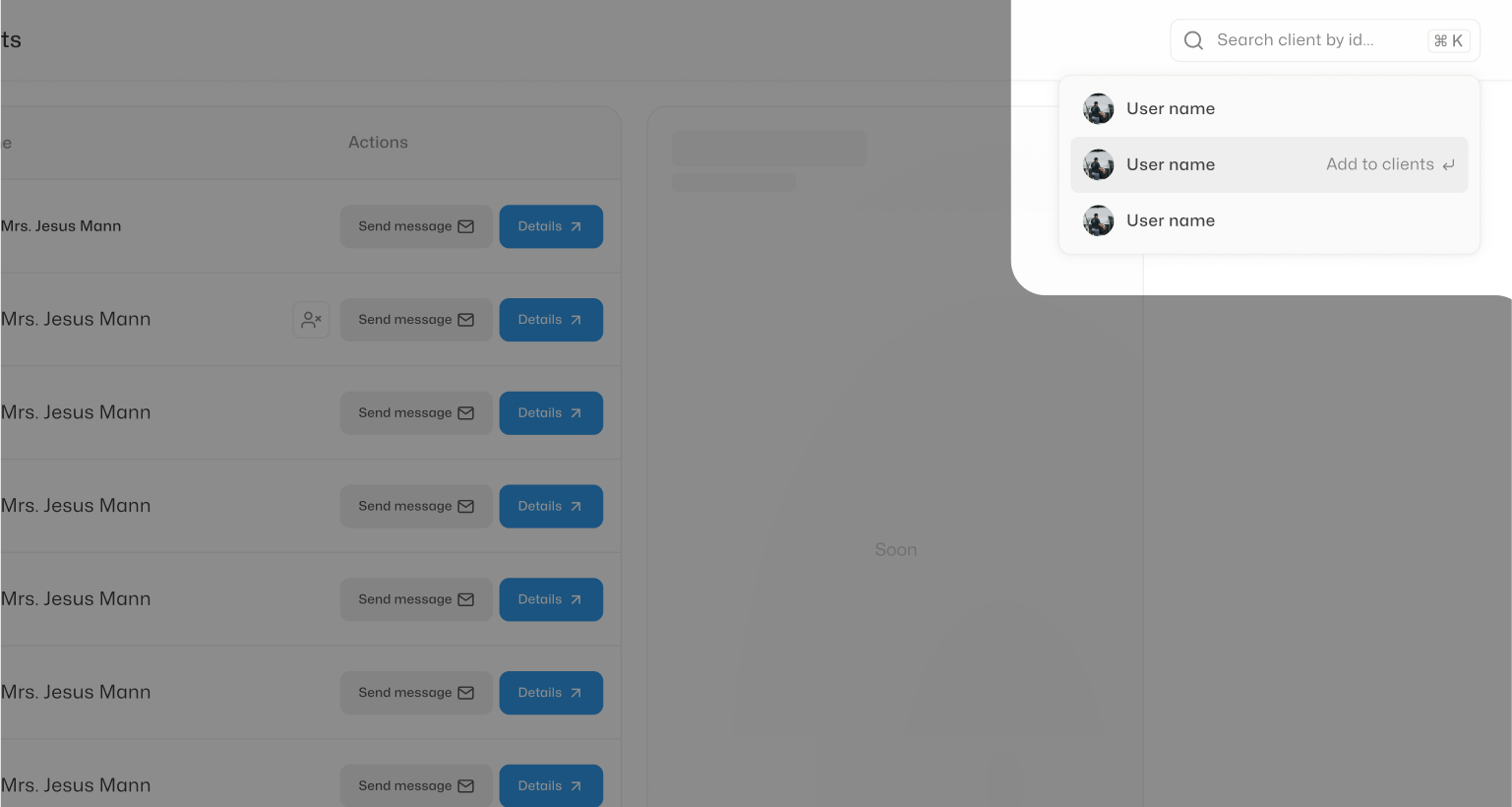
Nutrition and training plans
To manage the meal plan or workout schedule for a specific client, you need to find the client in your list of clients. If you have many clients, you can use the search function in the top left corner of your administrative panel (the same search used to add new clients) to find the specific client. Once you've found the client, click on their profile to access the "Details."
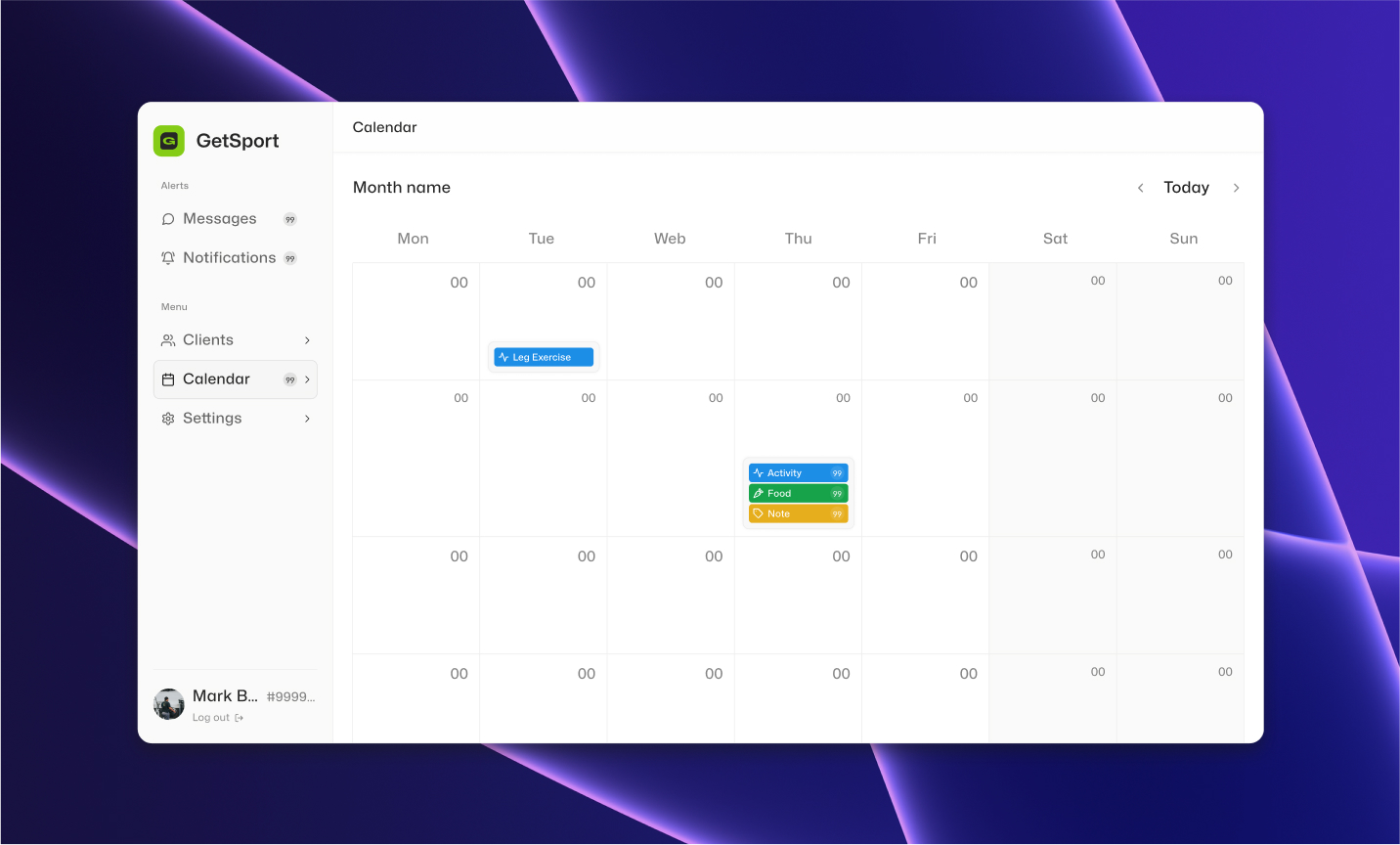
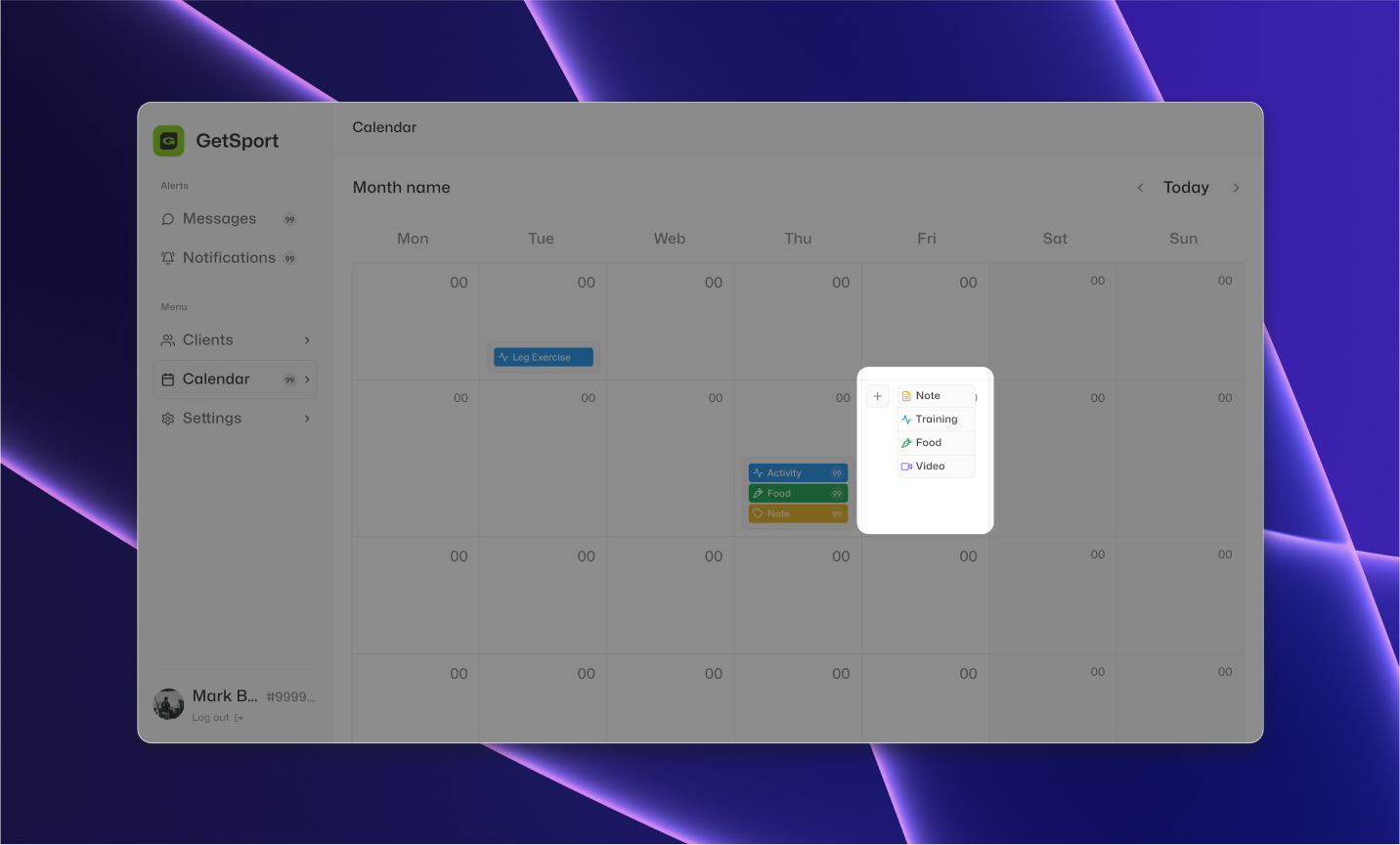
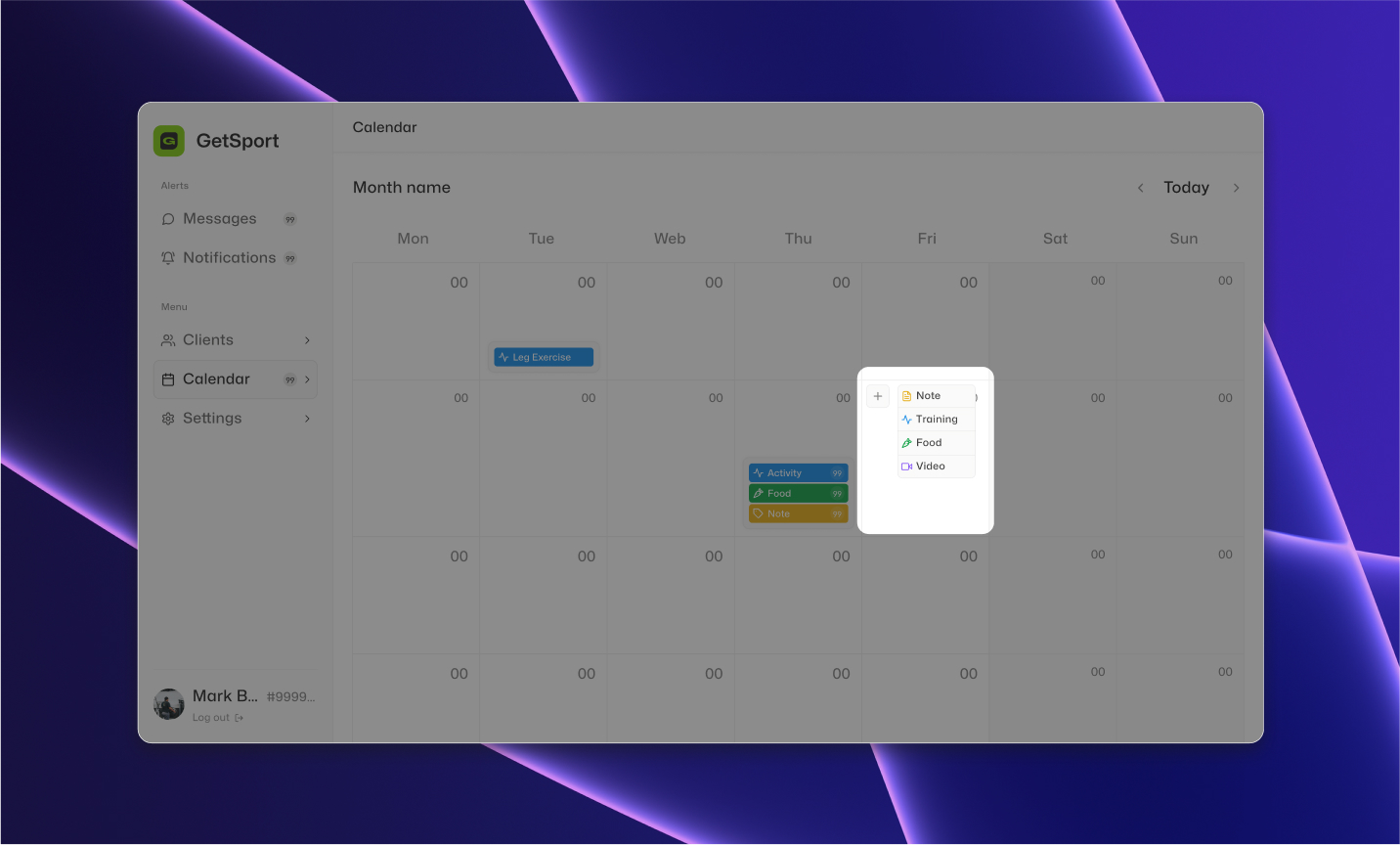
In the "Details" section, you will be taken to the client's calendar, where you can add the following elements:
- Notes: You can add any notes or important information related to the client's progress, goals, or any other relevant details.
- Activity: This is where you can add the workout plans for the client. You can create multiple workouts for the same day by opening the Activity window and adding all the workouts for the selected date.
- Food: This is where you can add the meal plans for the client. Similar to Activity, you can add multiple meals for the same day by opening the Food window and adding all the meals for the selected date.
- Video: You can record a video to create a professional summary of the day's plans or provide feedback to the client after their activities.
You can only add one element of each type per day, but within each type, you can add multiple plans. For example, if you want to add multiple workouts during one day, create an Activity, open the Activity window, and add all the workouts for the chosen date. The same applies to adding multiple meals in the Food section and multiple reminders in the Notes section.
These features allow you to efficiently manage and customize the meal and workout plans for each individual client, ensuring a personalized and effective approach to their fitness journey.
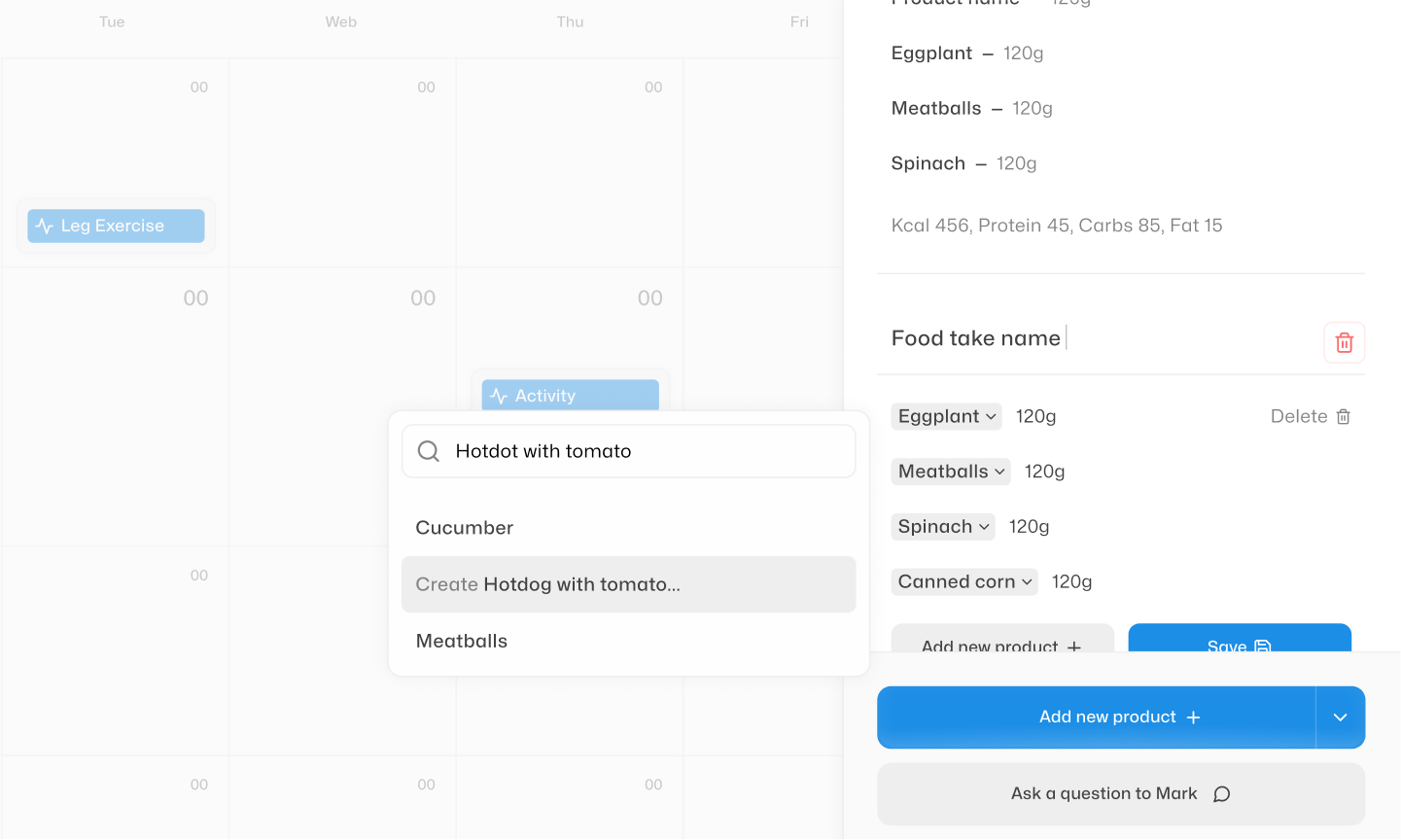
Managing nutrition plan or program
To manage the nutrition plan or program, follow these steps:
- To add a meal, click on "Food" in the calendar, then open the Food window and click on "Add Meal."
- In the "Add Meal" window, you can enter the name of the meal and add an optional image to represent it.
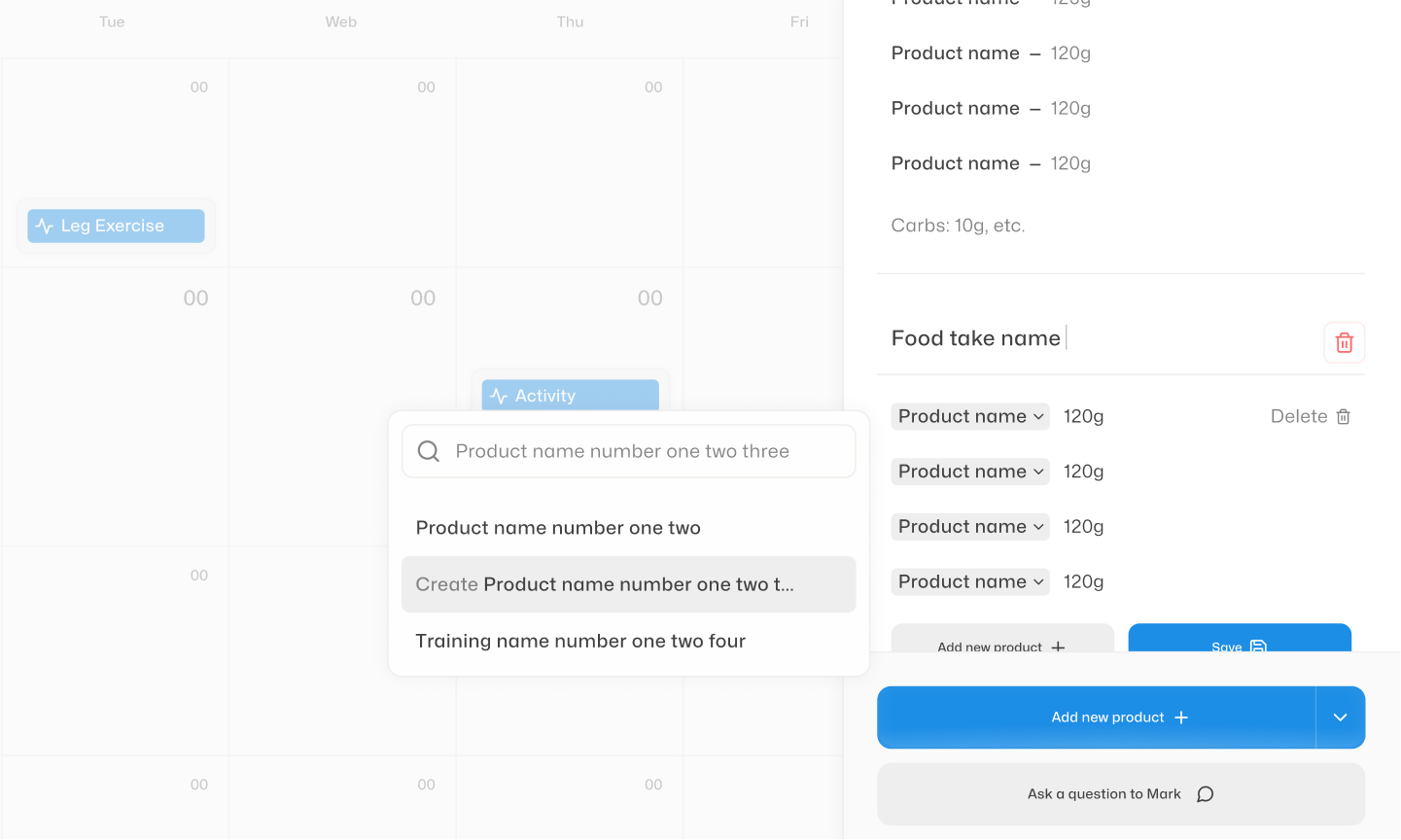
- Next, you can add the food items to the meal. You have two options: you can select items from our database of over 1000 foods with calculated calories, protein, fats, and carbohydrates per 100 grams, or you can add custom food items not present in our database.
- If you choose items from our database, the nutritional information will be automatically calculated based on the selected quantity in grams. Simply specify the quantity of each item to ensure accurate calculations.
- If you add custom food items not in our database, you can manually enter the calories per 100 grams and the weight of the food item. GetSport will automatically calculate the total calories for that custom food item in the meal.
By utilizing the extensive food database and custom food entry feature, you can create detailed and accurate nutrition plans tailored to each client's specific needs and dietary preferences. This allows you to provide effective guidance and support in helping your clients achieve their nutrition goals.
Notes & Reminders
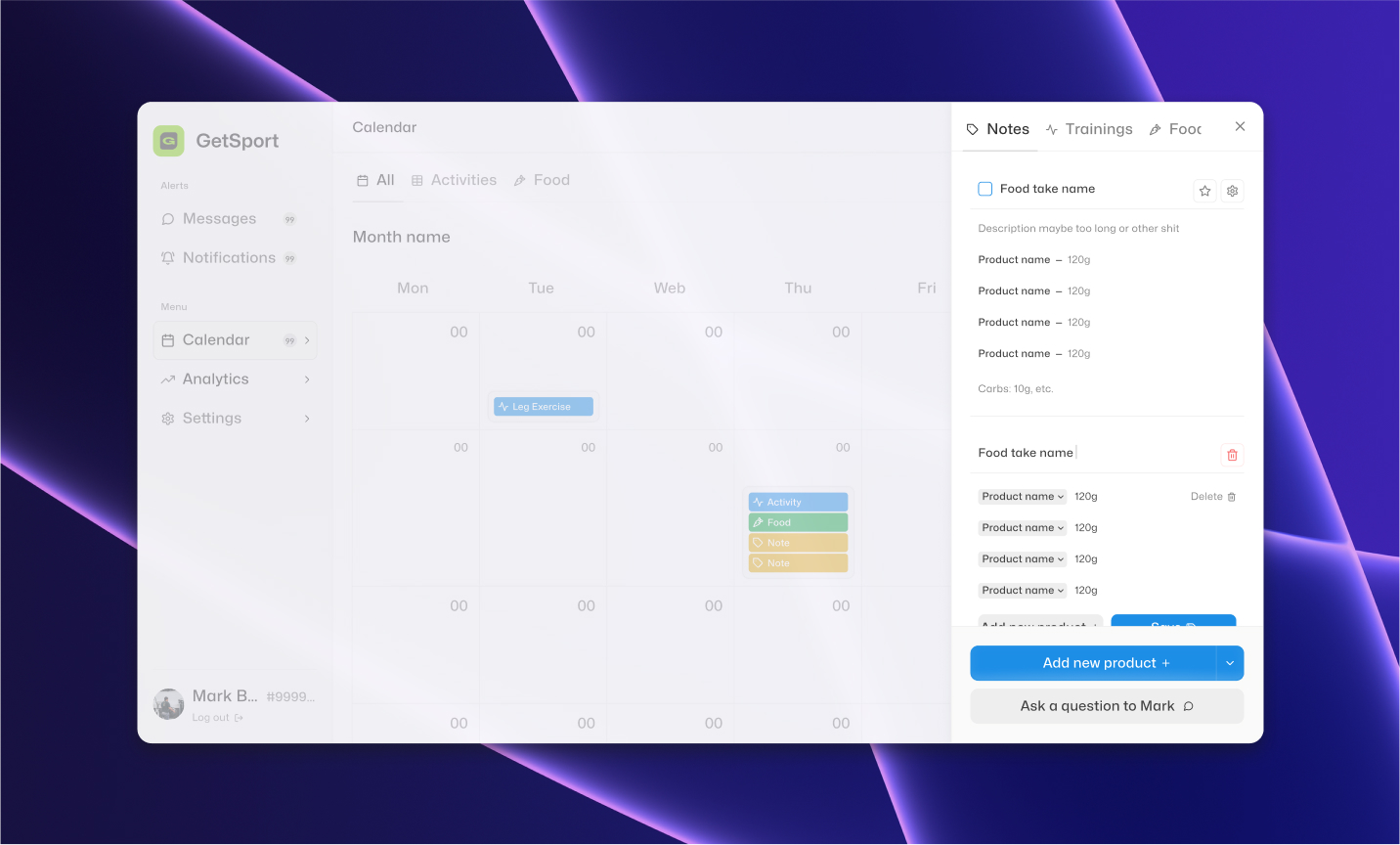
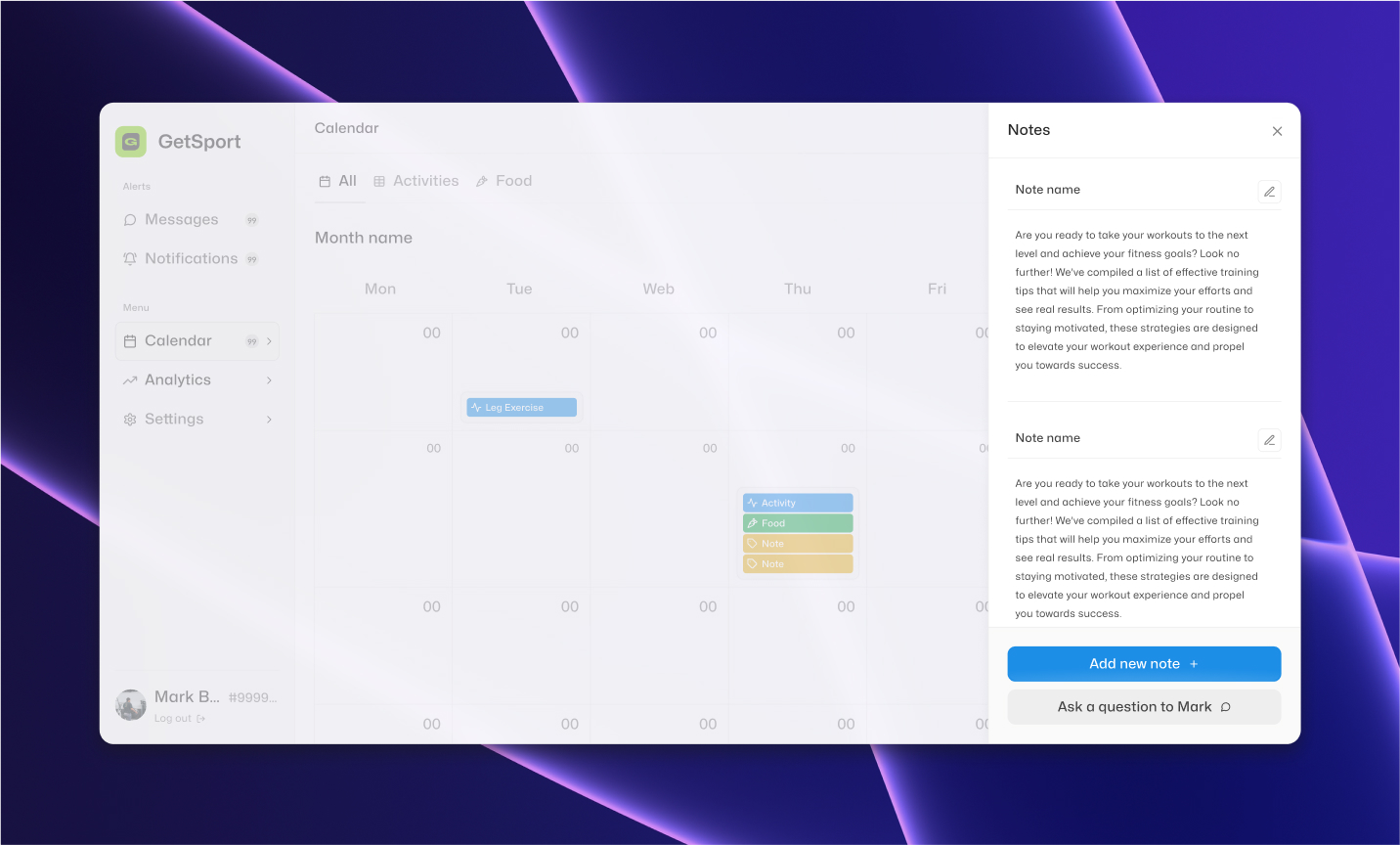
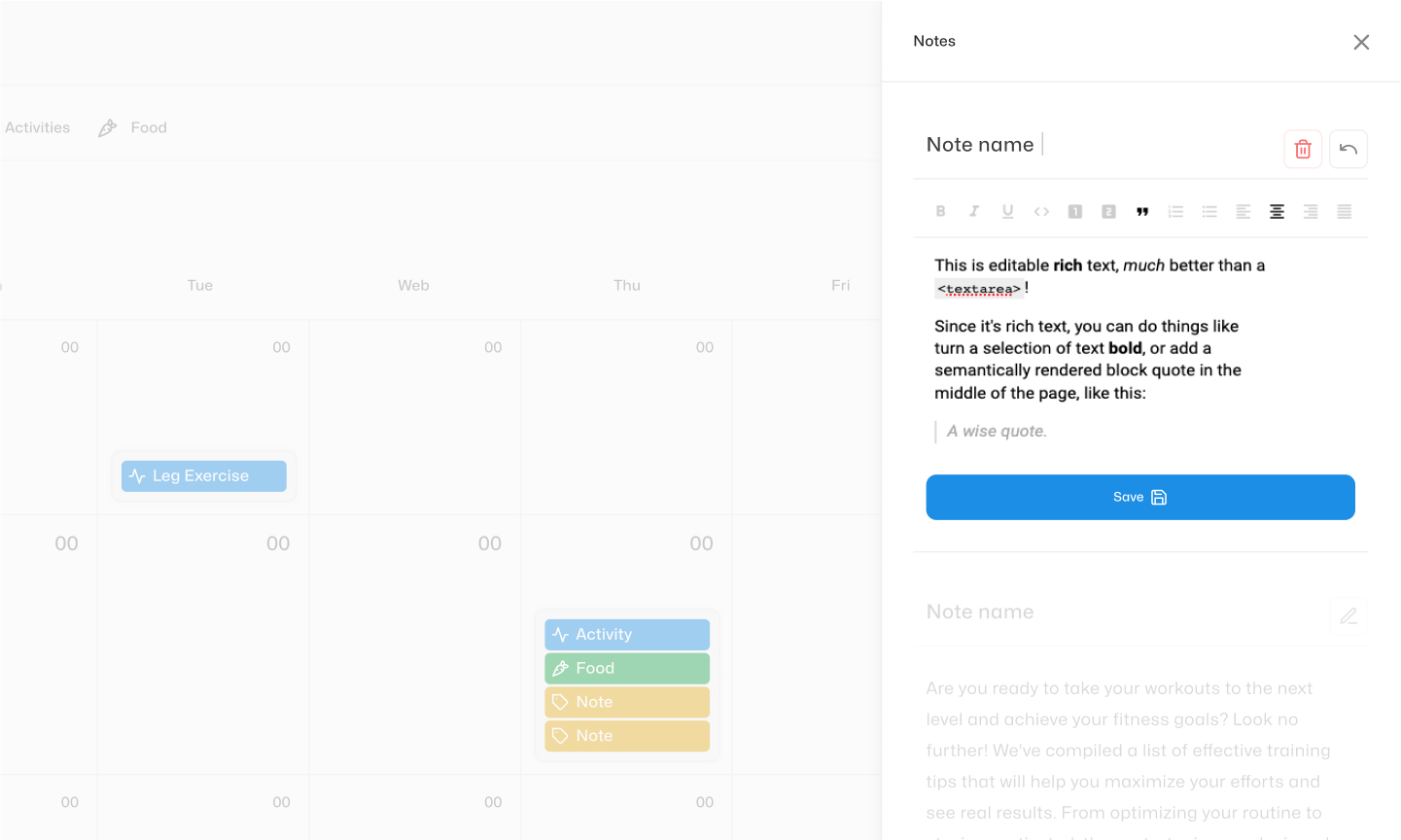
To make it clear, Notes is a little tab you can add in your calendar, while Reminders is a text sections inside Notes (Reminders can be added only inside one choosen day).
To add a note, you need to add "Notes" in the calendar, then open "Notes," and inside, you can add multiple "Reminders." Each "Reminder" can have a title and text within it.
Permissions
— Can the client modify Notes, Food, Activity, or Video?
Yes, clients have the ability to edit and delete certain information in their "Notes," "Food," "Activity," or "Video" sections. As a specialist, you will be able to see all the changes made by the client, including the modified information. It's worth noting that multiple specialists can have access to a client's calendar.
— If the client has a second coach, can he see the information I add?
Yes, all trainers who have access to your client's admin panel see the information being added to the client's calendar.
Access to Client Analytics
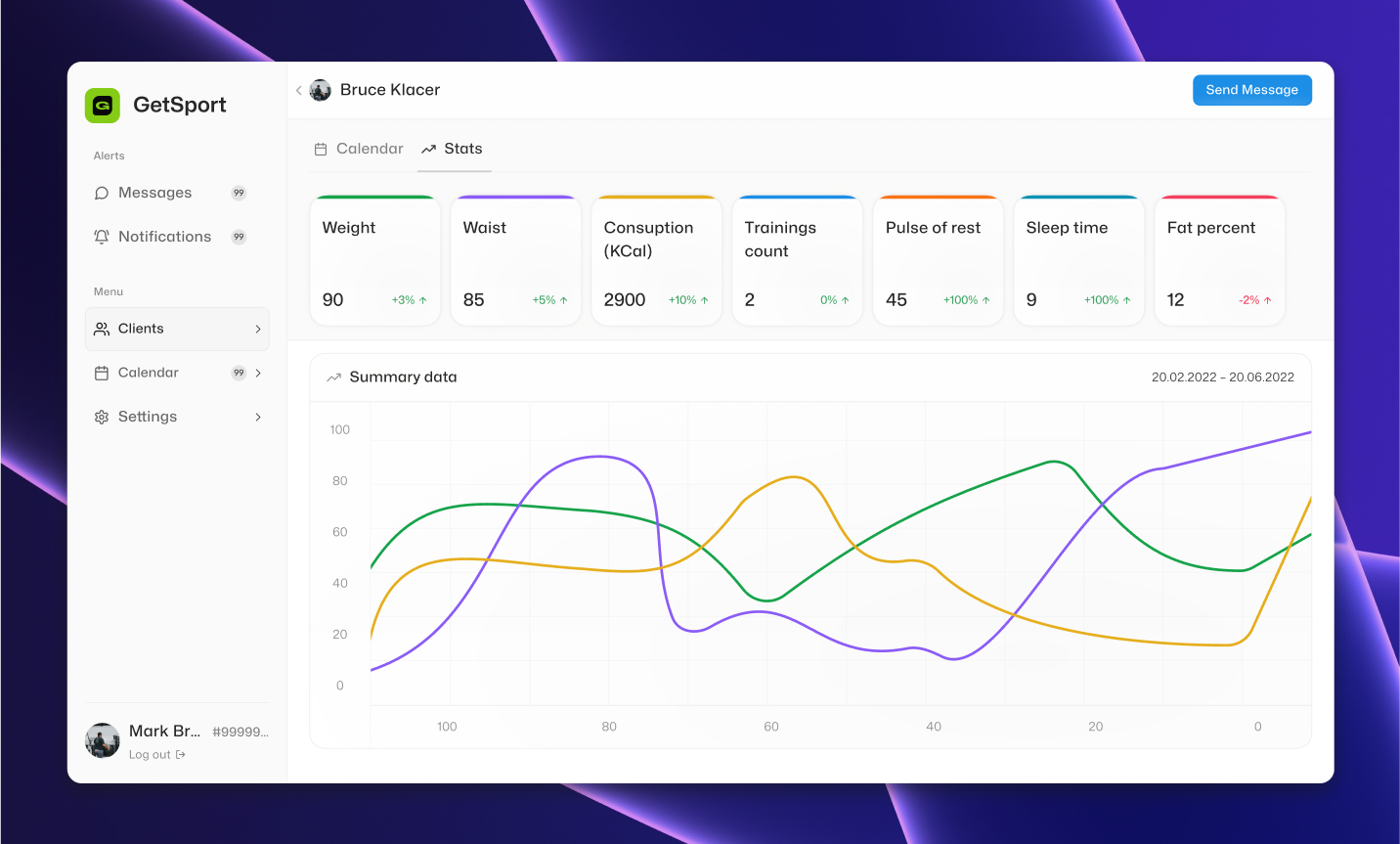
A specialist (e.g., a coach) can view client analytics but cannot independently input data into it. To view analytics for a client, you need to go to the 'Clients' section, select the relevant client, go to 'Details', and open the 'Analytics' tab. Here, you can see data in different formats, progress in percentage (increase or decrease), as well as visual graphs for better understanding.
Favourites
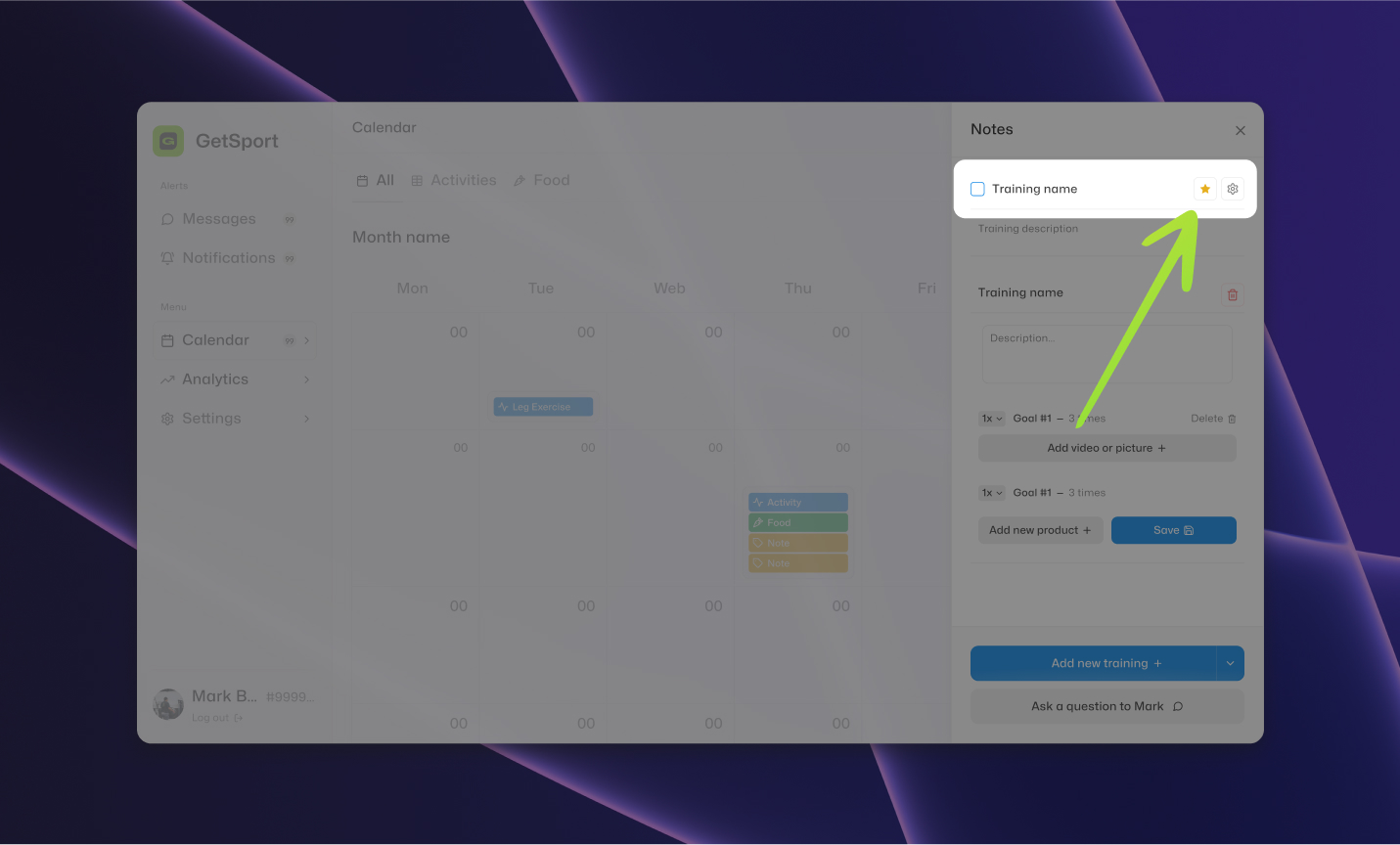
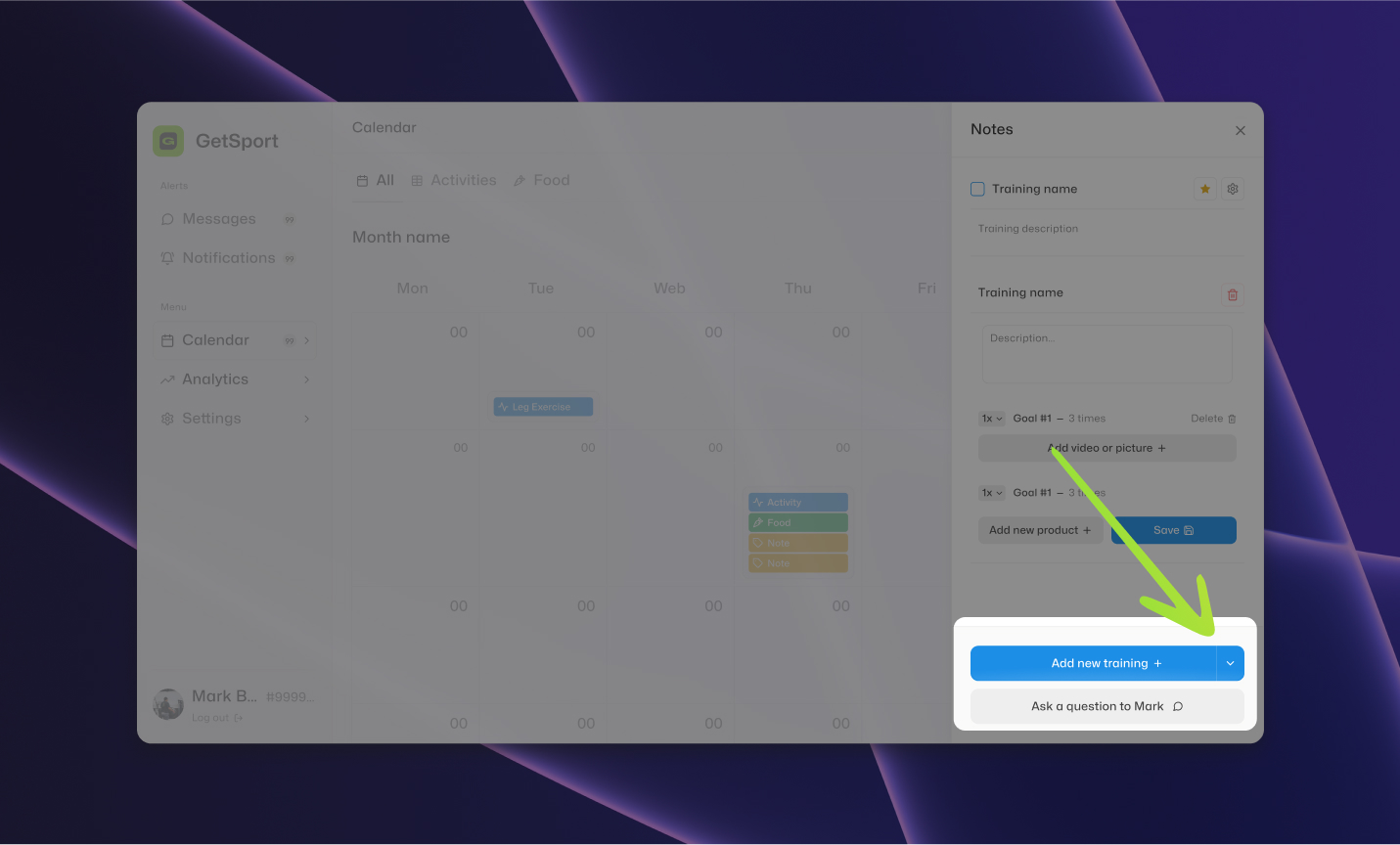
Any specialist and any athlete can add a meal or workout to their favorites. A specialist, for example, a coach, can use favorites to add to the calendars of other athletes.
To add a meal or workout to favorites, you need to click on the asterisk next to the item name.
To use favorites, when adding a meal or workout, the specialist needs to click on the right side of the button for adding a meal or workout, marked with an arrow. If you don't have favorites, then you won't see the favorites list.
Account verification
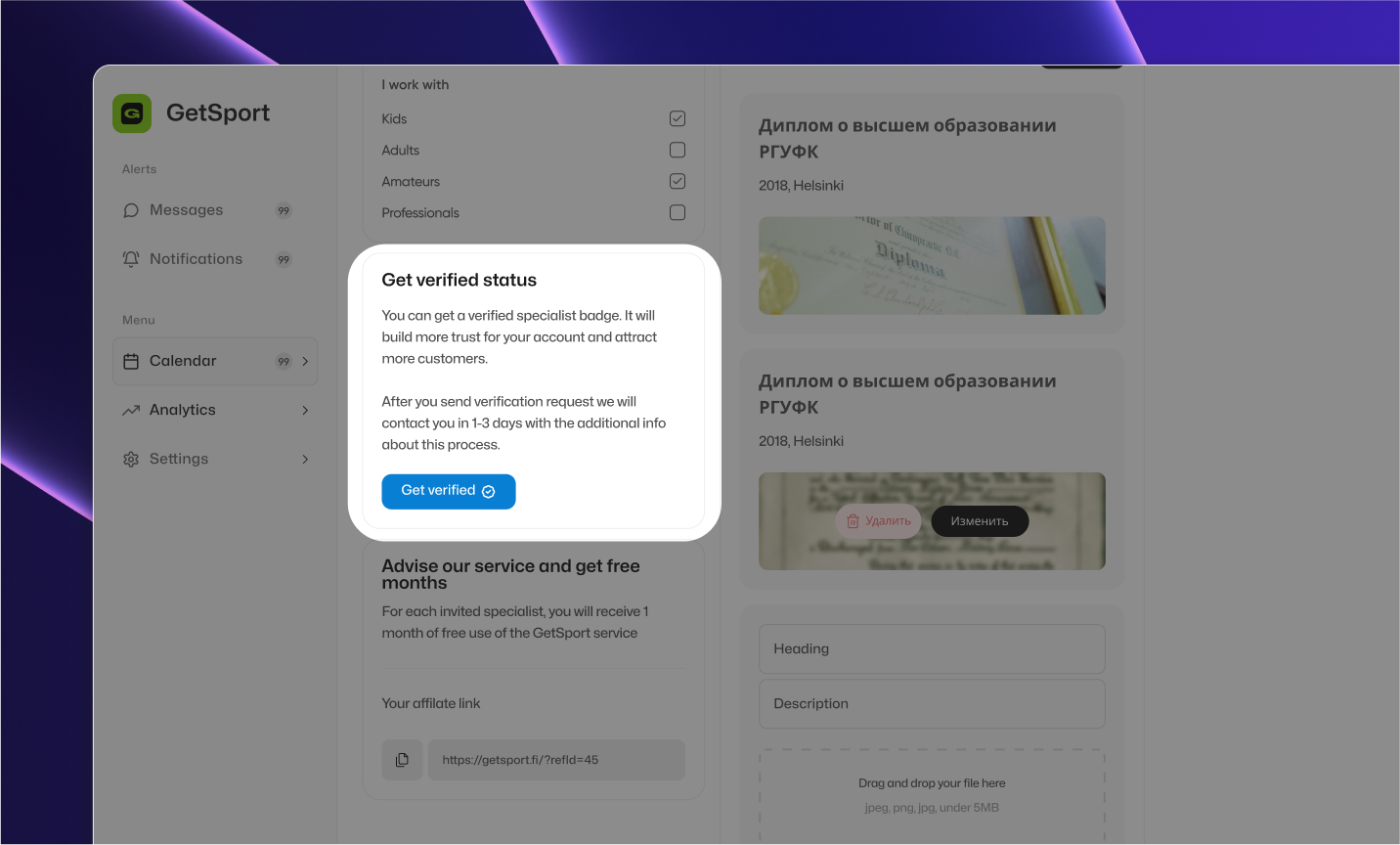
You can request verification for your account. Verified accounts inspire more trust among potential clients. To initiate the verification process, simply click on the corresponding button in the settings. We will respond to your request within 1-3 days, but sometimes this timeframe may be extended.
To complete the verification process, we will get in touch with you to schedule a video call or ask you to send your photo and professional education document to our email (you can choose one of the verification options).
Once we verify all the information, your profile on GetSport will receive a special badge indicating it is a verified account and will be highlighted in the listings.
Account Deletion
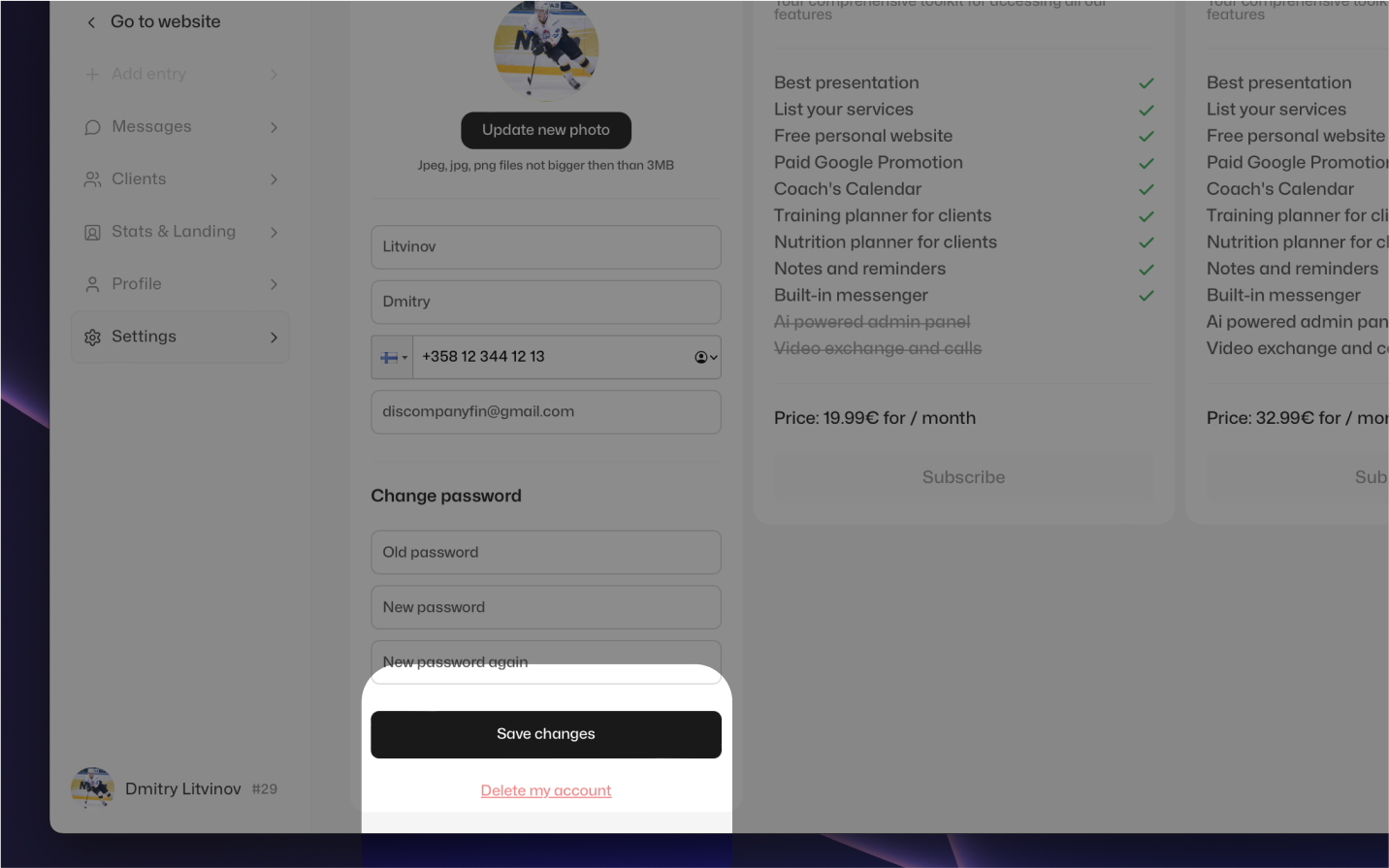
To delete your account, go to the main account settings and click on 'Delete Account' at the bottom. Please note that this action is irreversible and will result in the loss of all data: all bookings will be deleted, personal information, and your personal website will be removed, as well as your profile, statistics, and client list will be lost. We recommend pausing bookings or hiding your profile on GetSport to avoid data loss.
Adding new features
We are constantly working on the development and improvement of our functionality, adding new features, fixing bugs, and refining the GetSport services to perfection. We would appreciate it if you could leave feedback on your experience using our platform or share any specific features you would like to see added. Your input is valuable to us, and we will strive to implement any requested features as quickly as possible.
Have any questions? Contact us! Drop us an email at [email protected]
Terms of Service
- Specialists must provide accurate and up-to-date information in their profiles.
- Specialists are responsible for the content they post on their profiles and must ensure it complies with our community guidelines.
- Specialists must maintain a professional and respectful demeanor when interacting with clients and other users.
- Specialists should respond to client inquiries and messages in a timely manner.
- Specialists must maintain client confidentiality and not disclose any sensitive or personal information without the client's consent.
- Specialists should offer services that align with their expertise and qualifications.
- Specialists must honor any bookings made by clients and provide the agreed-upon services.
- Specialists should communicate any changes or cancellations to booked services promptly and professionally.
- Specialists must not engage in any discriminatory or harmful behavior towards clients or other users.
- Specialists should respect client boundaries and not pressure or coerce them into purchasing additional services.
- Specialists are responsible for the accuracy and reliability of any information or advice they provide to clients.
- Specialists must comply with all applicable laws and regulations in their provision of services.
- Specialists should maintain a safe and appropriate environment for in-person sessions, if applicable.
- Specialists must not engage in any fraudulent or deceptive practices on the platform.
- Specialists should refrain from making any false claims or guarantees about the results of their services.
- Specialists should promptly address any client complaints or issues in a professional manner.
- Specialists must not engage in any illegal or unethical activities on the platform.
- Specialists should keep their availability calendar up-to-date and accurate.
- Specialists must not engage in any form of harassment or abuse towards clients or other users.
- Specialists should handle client payments and financial transactions with integrity and transparency.
- Specialists are responsible for their own tax and financial obligations related to their earnings on the platform.
- Specialists should not solicit or promote any external services or products on the platform without prior authorization.
- Specialists must comply with any additional policies or guidelines set forth by GetSport.
- Specialists should maintain a professional and respectful communication style in all interactions with clients and other users.
- GetSport is not liable for any disputes or issues that arise between specialists and clients. Specialists and clients are responsible for resolving any conflicts independently.
Disclaimer
GetSport is not responsible for the accuracy, reliability, or quality of services provided by specialists on the platform. We do not endorse or guarantee any specialist's qualifications, expertise, or advice. Users of the platform are solely responsible for their interactions with specialists and any outcomes resulting from their services. GetSport does not assume any liability for the actions or conduct of specialists or clients. Users are encouraged to use their best judgment and exercise caution when engaging with others on the platform.
Nutrition and Workout Disclaimer
- All nutrition plans and workout programs provided by specialists are for informational purposes only and should not be considered as medical or professional advice. Users should consult with a qualified healthcare professional before making any significant changes to their diet or exercise routines.
- GetSport does not guarantee any specific results from following the nutrition plans or workout programs provided by specialists. Individual results may vary based on factors such as lifestyle, genetics, and adherence to the plans.
- Users should be aware of their own physical limitations and should not perform any exercises or activities that may cause injury or discomfort. Specialists are not responsible for any injuries or health issues that may arise from following their recommendations.
- Nutritional information provided by specialists, including calorie counts and macronutrient breakdowns, is based on general estimates and may not be accurate for all individuals. Users should use their discretion and consult with a nutritionist for personalized advice.
- Any supplements or products recommended by specialists are not endorsed or guaranteed by GetSport. Users should research and consult with a healthcare professional before using any new supplements or products.
Payment Terms
- Users are responsible for the timely payment of all fees and charges associated with specialist services, as specified in the booking or agreement.
- Payment for services may be processed through GetSport's designated payment gateway or platform. Users should ensure they provide accurate and valid payment information.
- In the event of a cancellation or refund request, users should follow the cancellation policy specified by the specialist. GetSport is not liable for any refunds or disputes related to payment.
- Users are responsible for any additional charges or fees incurred, such as transaction fees or currency conversion fees.
- GetSport reserves the right to modify or update its payment terms and methods at any time. Users will be notified of any changes through the platform's communication channels.